
Sidebar Navigation
The sidebar is the primary navigation surface in SetGet. It runs along the left edge of the screen and provides access to every major section of your workspace. The sidebar is designed to be fully customizable — you can reorder items, collapse groups, pin favorites, and adjust the width to match your workflow.
Default menu items
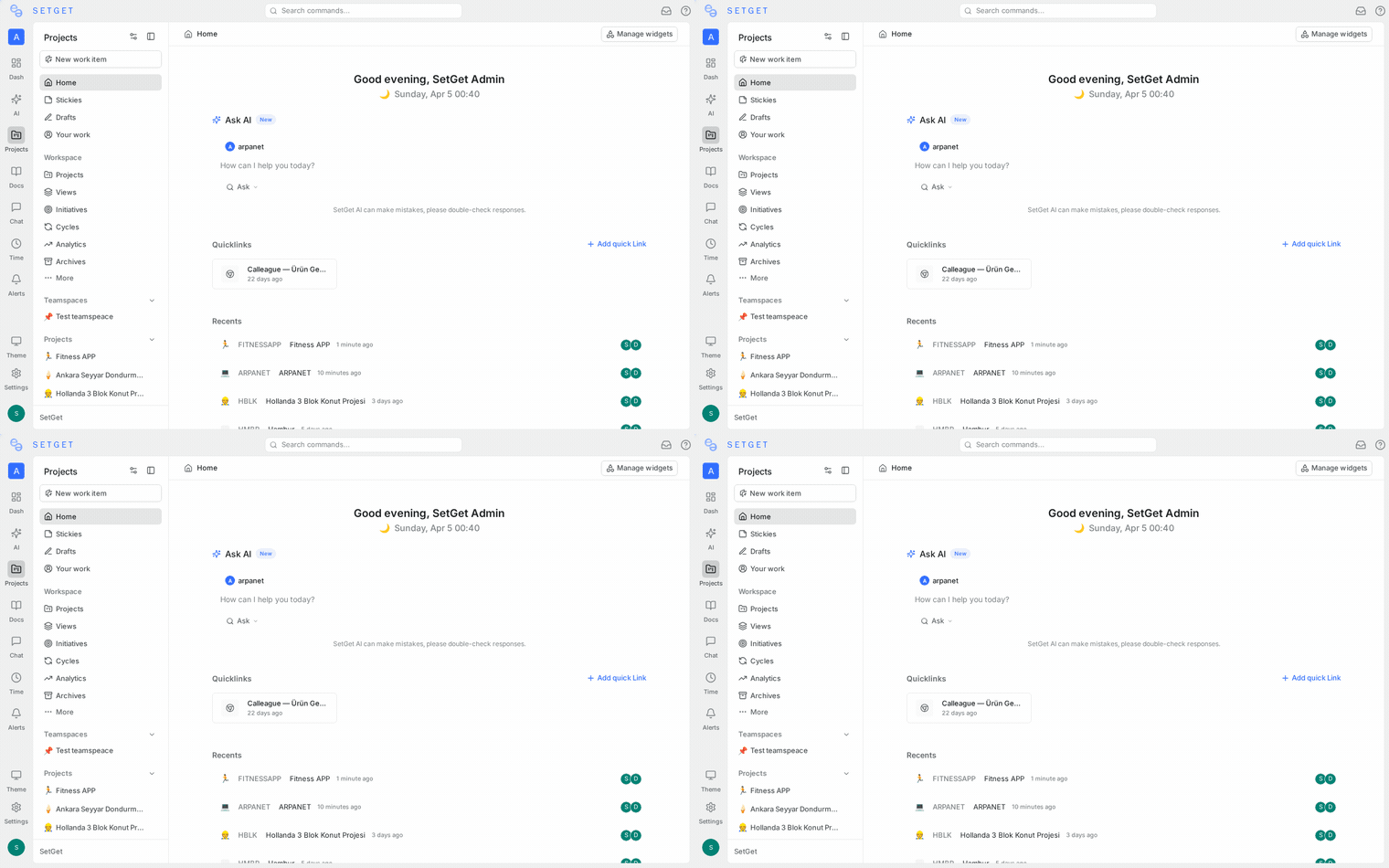
When you first open a workspace, the sidebar contains the following items in order:
| Menu Item | Description |
|---|---|
| Home | Your personalized workspace homepage with widgets and quick actions |
| Inbox | Notifications center — mentions, assignments, comments, and updates |
| Your Work | A unified view of all work items assigned to you across projects |
| Drafts | Work items you have started creating but not yet published |
| Stickies | Quick notes and reminders pinned to your workspace |
| Projects | Expandable list of all projects you have access to |
| Views | Saved custom filters and layouts for work items |
| Active Cycles | Currently running cycles across all projects |
| Analytics | Workspace-wide charts and reports |
| Archives | Archived projects and work items |
| Dashboards | Custom dashboard views with configurable widgets |
Below the main items, you may also see sections for Teamspaces (if any exist) and Favorites (if you have pinned any items).
Workspace selector
At the very top of the sidebar, the workspace selector shows the current workspace name and logo. Click it to:
- Switch to a different workspace
- Create a new workspace
- View workspace settings
Navigating projects
The Projects section expands to show all projects in the workspace that you have access to. Each project entry shows the project icon and name. Click a project to expand it into a sub-menu with quick links:
- Work Items
- Cycles
- Modules
- Views
- Pages
- Settings
You can collapse a project sub-menu by clicking the project name again.
TIP
If your workspace has many projects, use the search field at the top of the Projects section to filter the list quickly.
Favorites
You can pin frequently accessed items to the Favorites section of the sidebar for one-click access.
Adding a favorite
Favorite any of the following by clicking the star icon on the item's page or header:
- Projects
- Views
- Cycles
- Modules
- Pages
- Individual work items
Favorited items appear in the Favorites section of the sidebar, below the main menu items.
Removing a favorite
Click the star icon again on the item or right-click the favorite in the sidebar and select Remove from Favorites.
Reordering favorites
Drag favorites up or down within the Favorites section to set the order that works for you.
Reordering menu items
You can reorder the top-level sidebar items to match your usage patterns:
- Hover over a sidebar item to reveal the drag handle (six dots icon) on the left.
- Click and drag the item to the desired position.
- Release to drop it in place.
The new order is saved automatically and persists across sessions. Each member has their own sidebar order — rearranging your sidebar does not affect other members.
Collapsing sections
Sections like Projects, Favorites, and Teamspaces can be collapsed to reduce visual clutter:
- Click the section header (e.g., "Projects").
- The section collapses, hiding all items within it.
- Click the header again to expand it.
Collapse state is remembered across sessions.
Sidebar width
The sidebar supports three width modes:
| Mode | Behavior |
|---|---|
| Default | Fixed width showing icons and labels |
| Narrow | Collapsed to show only icons; hover to reveal labels in a tooltip |
| Custom | Drag the sidebar edge to set a custom width |
To resize the sidebar, hover over the right edge until the cursor changes to a resize handle, then drag left or right.
Sidebar peek mode
Peek mode hides the sidebar entirely to maximize the content area and reveals it temporarily when you hover near the left edge of the screen.
Enabling peek mode
- Click the collapse icon at the bottom of the sidebar, or press
[on your keyboard. - The sidebar slides out of view and the content area expands to fill the screen.
- Hover over the left edge of the screen to peek at the sidebar.
- Click an item in the peeked sidebar to navigate — the sidebar hides again after navigation.
Exiting peek mode
- Hover to reveal the sidebar, then click the pin icon to lock it open.
- Or press
[again to toggle the sidebar back to its permanent state.
TIP
Peek mode is especially useful on smaller screens or when you want to focus on a single document or work item without distraction.
Inbox badge
The Inbox menu item shows a badge with the count of unread notifications. The badge updates in real time. Clicking Inbox opens the notification center where you can triage and act on each notification.
Keyboard shortcuts for navigation
| Shortcut | Action |
|---|---|
[ | Toggle sidebar visibility (peek mode) |
Ctrl+K / Cmd+K | Open global search / command palette |
H | Navigate to Home |
These shortcuts work from any screen when no input field is focused.
WARNING
If you accidentally hide the sidebar and cannot find the hover trigger, press [ on your keyboard to restore it.
Related pages
- Workspace Homepage — Customize your landing page widgets
- Command Palette — Keyboard-driven command access
- Global Search — Find anything in your workspace
- Teamspaces — Organize cross-project teams
- Projects — Project structure and settings