
Wiki Mode
Wiki mode transforms a project's pages into a structured knowledge base with dedicated sidebar navigation, an auto-generated table of contents, and enhanced search. While regular pages are flexible and loosely organized, wiki mode imposes a more structured approach designed for long-lived, team-wide documentation.
Wiki vs. regular pages
| Aspect | Regular pages | Wiki mode |
|---|---|---|
| Organization | Flat list with optional nesting | Tree-based structure with explicit hierarchy |
| Navigation | Sidebar list, breadcrumbs | Dedicated wiki sidebar with expandable tree |
| Table of contents | Not generated | Auto-generated from headings within each page |
| Search | Standard page search | Enhanced wiki search across all wiki pages |
| Intended lifespan | Notes, drafts, temporary docs | Persistent reference documentation |
| Editing | Any project member (based on access) | Any project member (based on access) |
| Publishing | Per-page publishing | Per-page publishing |
Enabling wiki mode
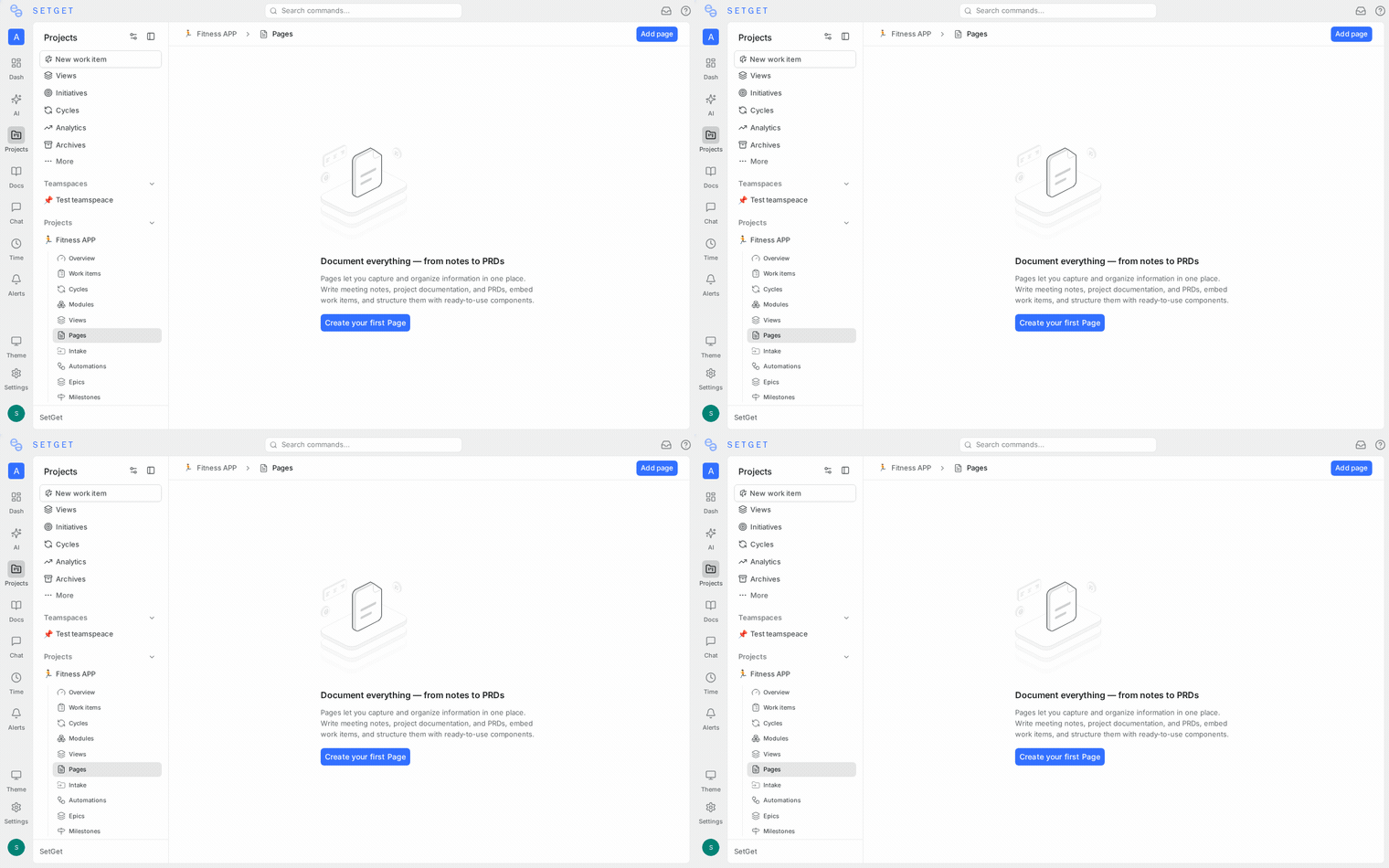
Wiki mode is enabled at the project level.
- Open the project Settings.
- Navigate to the Features section.
- Find the Wiki toggle and enable it.
- A new Wiki section appears in the project sidebar.
TIP
Enabling wiki mode does not affect existing regular pages. You can use both regular pages and wiki pages within the same project. They are separate collections.
Creating wiki pages
Once wiki mode is enabled:
- Click the Wiki section in the project sidebar.
- Click New Page at the top of the wiki sidebar.
- Enter a title and begin writing.
- The page is automatically added to the wiki tree.
Creating child pages in the wiki
- Hover over an existing wiki page in the sidebar.
- Click the + icon to add a child page.
- The new page appears nested under the parent in the wiki tree.
Child pages work identically to Nested Pages — they support drag-and-drop reordering, moving between parents, and breadcrumb navigation.
Wiki structure
The wiki sidebar displays all wiki pages in a tree format:
Wiki
├── Getting Started
│   ├── Installation
│   ├── Configuration
│   └── First Steps
├── Architecture
│   ├── Backend
│   ├── Frontend
│   └── Database
├── Processes
│   ├── Release Process
│   ├── Code Review
│   └── On-call Rotation
└── FAQ
Structuring your wiki
A well-structured wiki follows these principles:
| Principle | Guideline |
|---|---|
| Top-level sections | Represent major areas (e.g., Getting Started, Architecture, Processes) |
| Second level | Represent specific topics within each area |
| Third level and deeper | Use sparingly for detailed sub-topics |
| Naming | Use clear, descriptive page titles that stand on their own |
| Ordering | Place the most-accessed pages near the top of each section |
Wiki navigation
Sidebar tree
The wiki sidebar provides persistent navigation:
- Click a page to open it.
- Click the arrow to expand or collapse child pages.
- The current page is highlighted.
- The tree state (expanded/collapsed) persists across sessions.
Table of contents
Each wiki page automatically generates a table of contents from its headings. The table of contents appears on the right side of the page when viewing and provides jump links to each section.
| Heading level | Included in TOC |
|---|---|
| H1 | Yes |
| H2 | Yes |
| H3 | Yes |
| H4 | Yes (indented) |
| H5 | No |
| H6 | No |
Breadcrumbs
Breadcrumb navigation appears at the top of each wiki page:
Project > Wiki > Architecture > BackendEach segment is clickable for direct navigation.
Wiki search
The wiki search bar at the top of the wiki sidebar searches across all wiki pages.
- Click the search icon or press
/while the wiki sidebar is focused. - Type your query.
- Results show matching page titles and content snippets.
- Click a result to open the page.
Wiki search indexes:
- Page titles
- Page body content
- Heading text
TIP
For workspace-wide search that includes wiki pages, work items, and more, use the global search (Ctrl+K / Cmd+K).
Managing wiki pages
Reorder pages
Drag and drop pages in the wiki sidebar to change their order. The order is shared across all project members.
Move pages
Right-click a wiki page and select Move to to change its parent or move it to the wiki root level.
Archive wiki pages
Pages that are outdated but worth preserving can be archived. Archived wiki pages are hidden from the sidebar but can be restored from the archive view.
Delete wiki pages
Right-click a wiki page and select Delete to permanently remove it. If the page has children, you will be prompted to delete the children or move them up one level.
WARNING
Deleting a wiki page is permanent. Consider archiving instead if the content may be useful in the future.
Use cases
Team onboarding guide
Build an onboarding wiki with sections for each team:
- Company overview and values
- Development environment setup
- Key tools and access
- Team-specific processes
- FAQ for new hires
Engineering knowledge base
Document technical decisions and architecture:
- System architecture diagrams
- API documentation
- Database schemas
- Deployment processes
- Incident response procedures
Process documentation
Standardize team processes:
- Sprint planning guide
- Code review checklist
- Release process
- On-call handbook
- Design review workflow
Product documentation
Maintain internal product reference:
- Feature specifications
- User research findings
- Product roadmap notes
- Competitive analysis
Best practices
- Assign wiki owners — designate one or two people responsible for wiki structure and quality.
- Review regularly — schedule quarterly reviews to archive stale content and update outdated pages.
- Use templates — create templates for common page types (e.g., ADR template, runbook template). See Page Templates.
- Link between wiki pages — cross-reference related topics to help readers discover relevant content.
- Start small — begin with the most critical documentation and expand as the team contributes.
Related pages
- Manage Pages — Page creation and management
- Nested Pages — Hierarchical page structure
- Page Editor — Rich text editing guide
- Page Templates — Reusable page templates
- Page Access Control — Permissions and sharing
- Publishing — Share pages publicly