
Manage Work Items
A work item is the fundamental unit of work in SetGet. Every task your team needs to complete — a feature to build, a bug to fix, a document to write, or an experiment to run — is represented as a work item. Work items carry rich metadata, support collaboration through comments and activity tracking, and can be organized into cycles, modules, and views.
How to create a work item
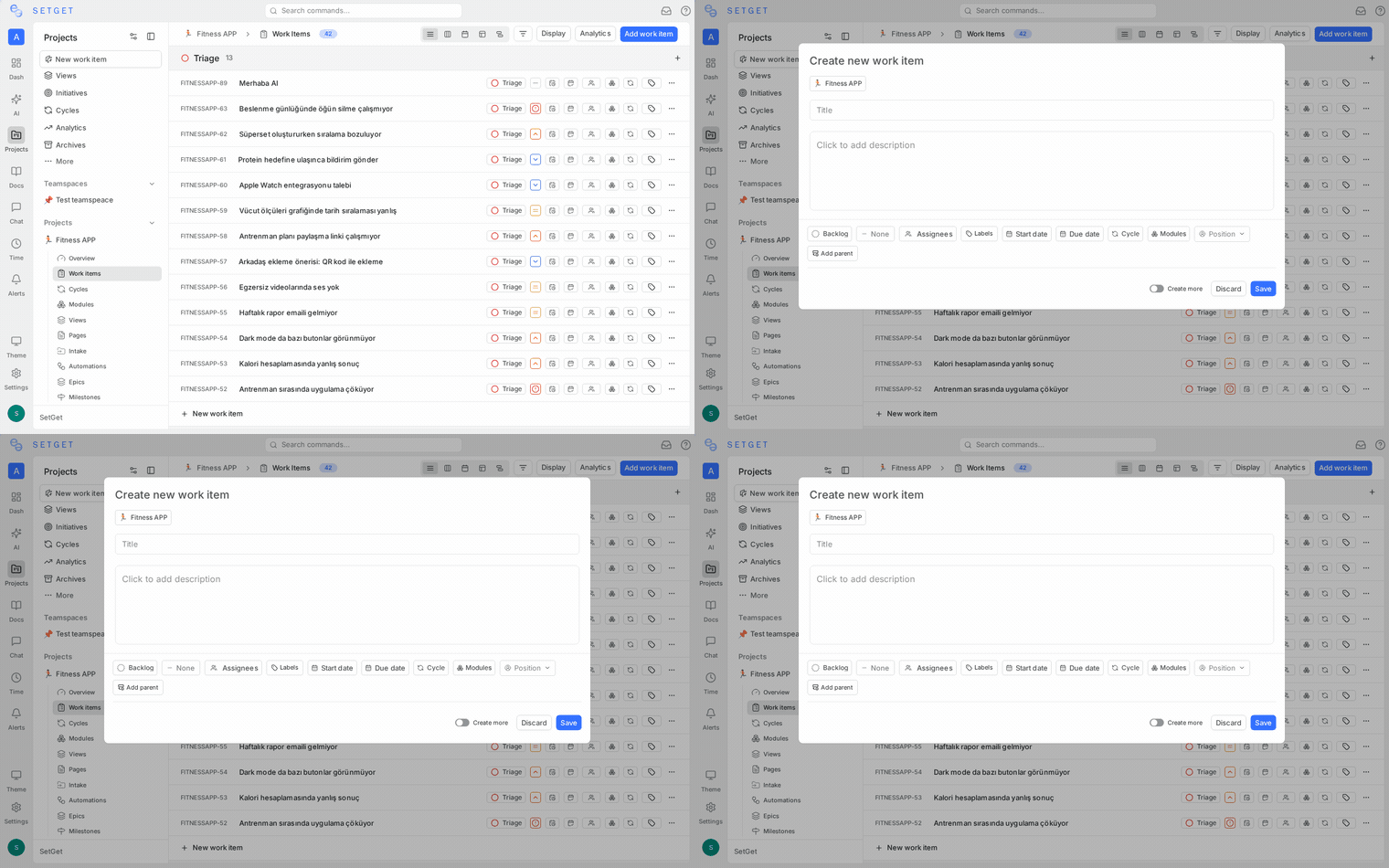
SetGet offers multiple ways to create work items, depending on how much detail you want to provide upfront.
Quick add
The fastest way to create a work item:
- Open any project and navigate to the work items list.
- Click the + button at the bottom of the list, or press
Con your keyboard. - Type a title and press Enter.
The work item is created with the default state (typically Backlog) and no other properties. You can add details later by clicking on it.
Creation modal
For a more complete setup:
- Click Create Work Item in the project header, or press
Cand then click Open full modal. - Fill in the available fields:
| Field | Description |
|---|---|
| Title | A concise description of what needs to be done |
| Description | Rich text content with formatting, images, and code blocks |
| State | Current workflow state (e.g., Backlog, In Progress, Done) |
| Priority | Urgency level: Urgent, High, Medium, Low, or None |
| Assignees | One or more responsible team members |
| Labels | Categorization tags defined at the project level |
| Due date | Target completion date |
| Start date | Expected start date |
| Estimate | Effort estimate (if the project has estimates configured) |
| Parent | A parent work item for hierarchical organization |
| Cycle | The sprint this work item belongs to |
| Module | The feature group this work item belongs to |
- Click Create Work Item to save, or Create & Add Another to save and immediately start creating the next one.
Create via URL
You can pre-fill work item fields using URL parameters. This is useful for creating links in external tools, emails, or automation workflows. See Create via URL for the full parameter reference.
View and browse work items
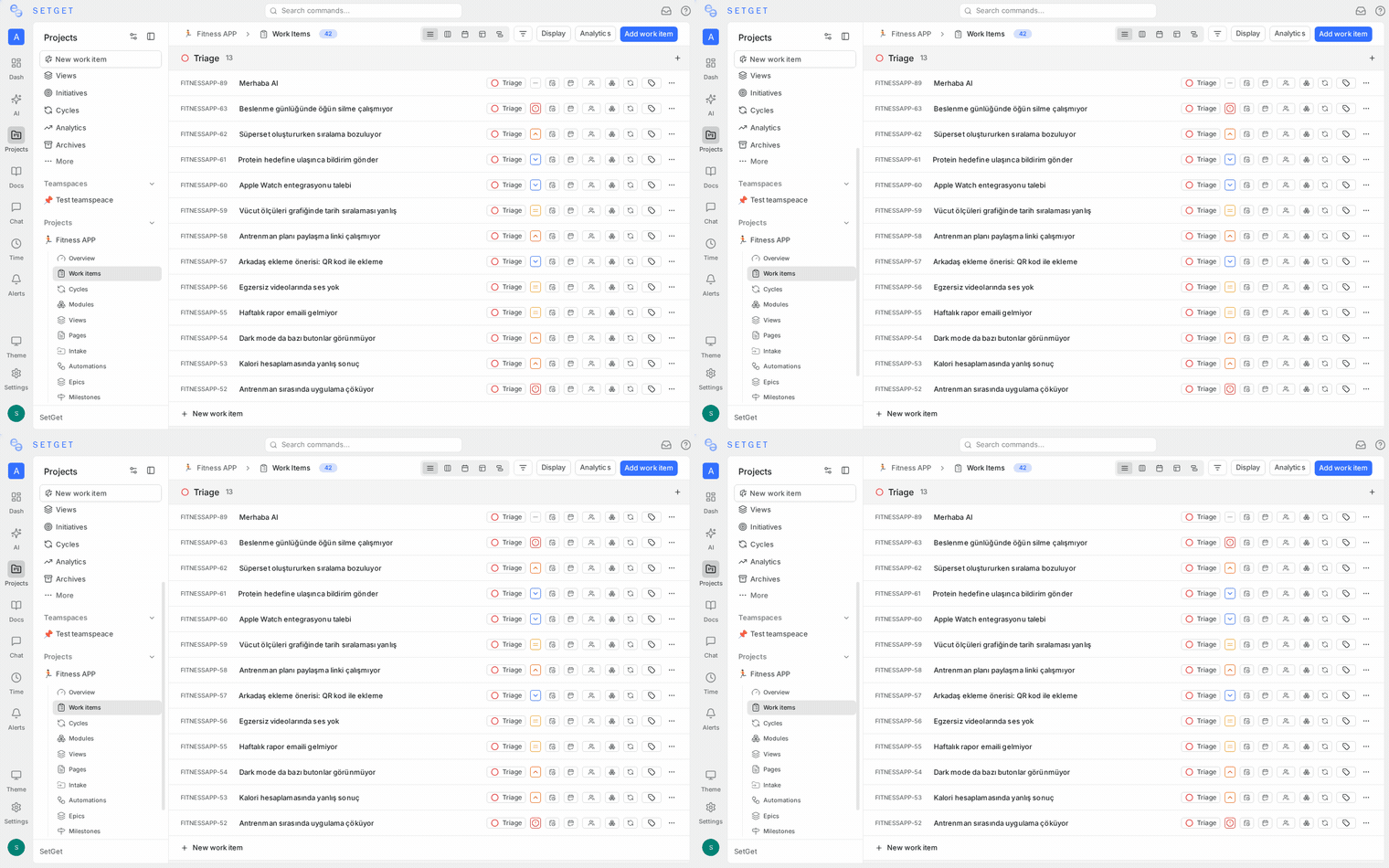
Layouts
SetGet provides five layout options for viewing work items. Switch layouts using the layout selector in the project header:
| Layout | Best for | Description |
|---|---|---|
| List | Quick triage and scanning | Clean vertical list with inline property display |
| Kanban | Visualizing workflow | Columns grouped by state, priority, or any property |
| Spreadsheet | Bulk editing | Editable grid with sortable and resizable columns |
| Calendar | Date-driven work | Work items placed on a calendar by due date |
| Gantt | Timeline planning | Horizontal timeline with duration bars and dependencies |
Each layout respects the same filters, grouping, and ordering settings. Changing the layout does not affect your data — only how it is displayed.
Peek view
Click on any work item to open it in a peek panel on the right side of the screen. The peek view shows the full detail — title, description, properties, comments, and activity — without leaving the current list.
To open a work item as a full page, click the expand icon in the peek panel or press Enter while the work item is selected.
Work item detail page
The full detail page provides the complete view of a work item:
- Header — title, identifier (e.g.,
WEB-42), state badge - Description — rich text editor for detailed context
- Properties sidebar — all metadata in one glance
- Comments — threaded discussion with @mentions
- Activity — chronological log of every change
- Relations — linked work items (parent, child, blocking, related, duplicate)
- Attachments — uploaded files
Edit a work item
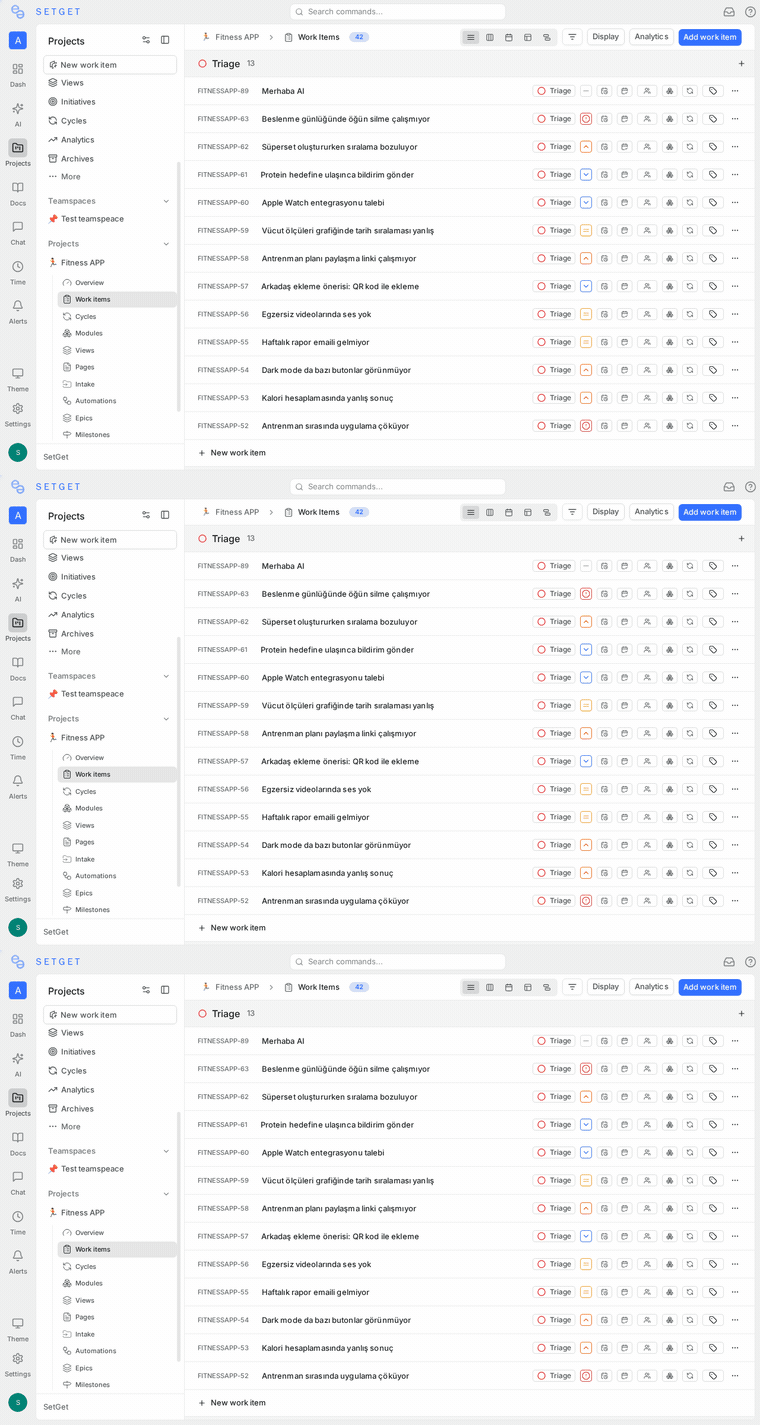
Inline editing
Many properties can be edited directly from the list or kanban view by clicking on the property value. For example:
- Click a state badge to change the state
- Click the priority icon to change priority
- Click the assignee avatar to add or change assignees
- Click the due date to set or modify dates
Detail editing
Open the work item (peek view or full page) to edit any property:
- Click the title to rename
- Click into the description to edit with the rich text editor
- Use the properties panel on the right to change state, priority, assignees, labels, estimates, dates, cycle, and module
All changes are saved automatically and appear in the activity feed.
Delete a work item
- Open the work item or right-click it in the list.
- Select Delete from the action menu.
- Confirm the deletion.
WARNING
Deleting a work item is permanent. It removes the item, its comments, activity history, and attachments. Consider archiving instead if you want to keep the record.
Work item identifier
Every work item has a unique identifier composed of the project code and a sequential number — for example, WEB-1, WEB-2, API-15. This identifier is:
- Permanent — it never changes even if the work item is moved or renamed
- Searchable — you can find any work item by typing its ID
- Linkable — use it in comments, descriptions, or external tools to create references
Work item activity feed
Every change to a work item is recorded in the activity feed — state changes, priority updates, assignee modifications, comment additions, label changes, and more. Each entry shows:
- What changed — the property and its old/new value
- Who made the change — the team member
- When it happened — timestamp
The activity feed is read-only and cannot be edited or deleted, providing a reliable audit trail.
Organize with filters and views
Work items can be filtered by any combination of properties — state, priority, assignee, label, cycle, module, date range, and more. You can save filter combinations as views for quick access.
See Filters and Views for detailed guides.
Keyboard shortcuts for work items
| Shortcut | Action |
|---|---|
C | Create new work item |
Enter | Open selected work item |
Esc | Close peek view |
↑ / ↓ | Navigate between work items |
Backspace | Delete selected work item |
See Keyboard Shortcuts for the complete list.
Best practices
- Write clear titles — a good title answers "what needs to be done?" in one line
- Use descriptions for context — include acceptance criteria, reproduction steps, or design links
- Set priority early — it helps the team understand what to work on first
- Assign owners — every work item should have at least one assignee for accountability
- Use labels consistently — establish a labeling convention and stick to it
- Link related work — use relations to connect dependent or related work items
- Archive instead of delete — keep a historical record of completed work
Related pages
- Work Item Properties — Complete property reference
- Work Item Types — Configure item types
- Workflow States — Define your workflow
- Bulk Operations — Update multiple items at once
- Filters — Advanced filtering guide
- Views — Save and share filter perspectives