
Work Item Properties
Every work item in SetGet carries a set of properties that describe what needs to be done, who is responsible, how urgent it is, and where it fits in the broader plan. This page is a complete reference for every property available on a work item.
Property overview
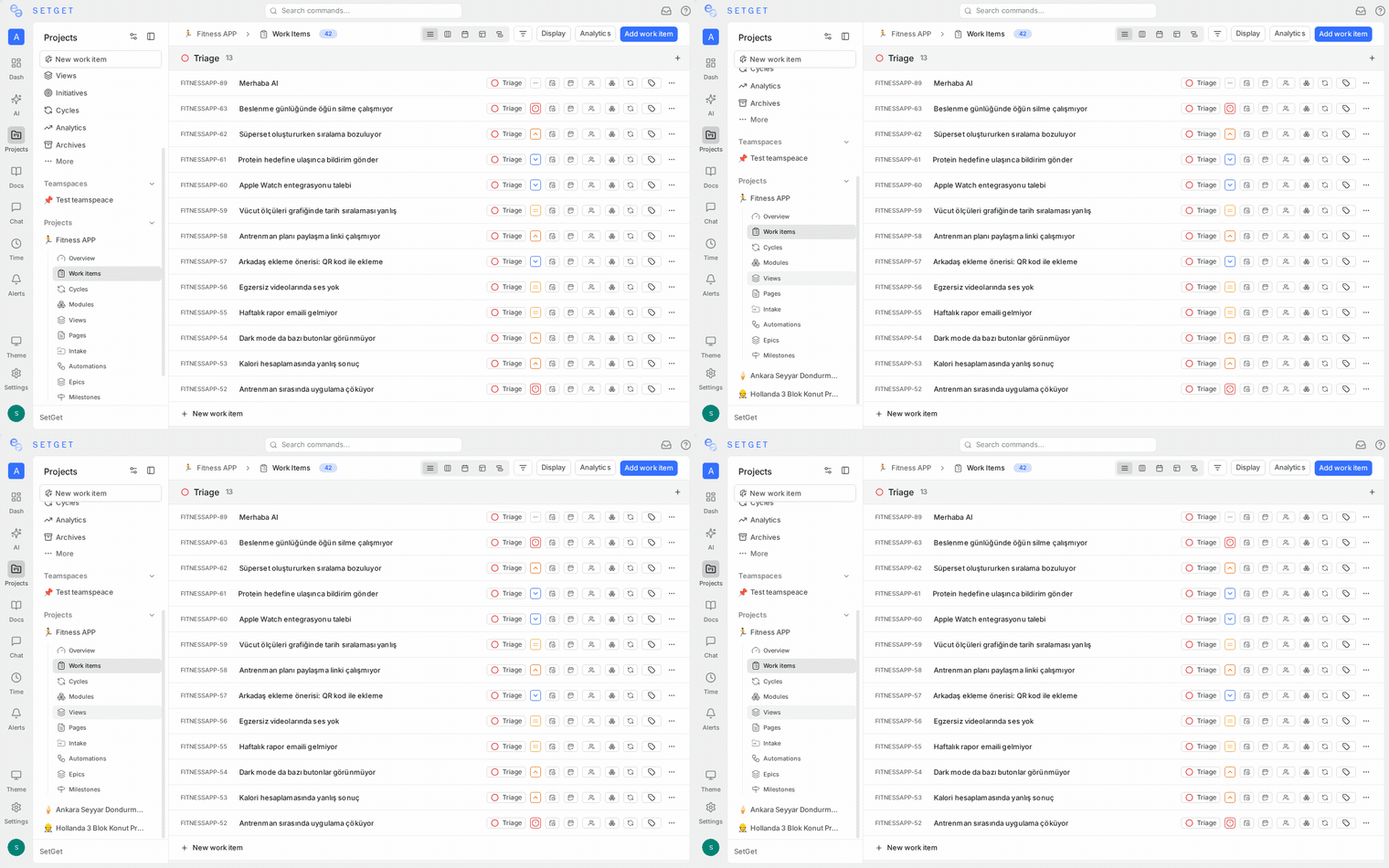
The table below lists all properties, their purpose, and where they can be edited.
| Property | Purpose | Set on creation | Editable inline | Editable in detail |
|---|---|---|---|---|
| Title | Short description of the work | Yes | Yes | Yes |
| Description | Detailed context and acceptance criteria | Yes | No | Yes |
| State | Current position in the workflow | Yes (defaults to Backlog) | Yes | Yes |
| Priority | Urgency level | Yes (defaults to None) | Yes | Yes |
| Assignees | Responsible team members | Yes | Yes | Yes |
| Labels | Categorization tags | Yes | Yes | Yes |
| Due date | Target completion date | Yes | Yes | Yes |
| Start date | Expected start date | Yes | Yes | Yes |
| Estimate | Effort size or duration | Yes | Yes | Yes |
| Parent | Parent work item for hierarchy | Yes | No | Yes |
| Cycle | Sprint the item belongs to | Yes | Yes | Yes |
| Module | Feature group the item belongs to | Yes | Yes | Yes |
| Type | Work item type (Task, Bug, etc.) | Yes | Yes | Yes |
Title
The title is a concise, one-line description of what needs to be done. It appears in every layout — list rows, kanban cards, calendar cells, gantt bars, and spreadsheet rows.
How to set it:
- Type the title when creating a work item via quick-add or the creation modal.
- Click the title text in the detail view or peek panel to edit it.
Guidelines:
- Keep titles under 80 characters for readability across layouts.
- Start with an action verb when possible: "Fix login timeout", "Add CSV export", "Update onboarding copy".
- Avoid vague titles like "Bug" or "Issue with thing".
Description
The description field is a full rich text editor that supports:
- Headings, bold, italic, strikethrough, and inline code
- Ordered and unordered lists, checklists
- Code blocks with syntax highlighting
- Images (pasted or uploaded)
- Tables
- Blockquotes
- Mentions of team members with
@ - Links to other work items by typing the item identifier (e.g.,
WEB-42)
How to set it:
- Open the work item in detail view or peek panel.
- Click into the description area below the title.
- Use the toolbar or Markdown-style shortcuts to format content.
Changes are saved automatically as you type.
TIP
Use the description for acceptance criteria, reproduction steps, design links, or any context the assignee needs. A well-written description reduces back-and-forth in comments.
State
The state property tracks where a work item sits in the workflow. Every state belongs to one of five state groups:
| State group | Color | Meaning |
|---|---|---|
| Backlog | Gray | Not yet planned for active work |
| Unstarted | Blue | Planned but work has not begun |
| Started | Orange | Actively being worked on |
| Completed | Green | Finished successfully |
| Cancelled | Red | Will not be completed |
Each project can define custom states within these groups. For example, the Started group might contain "In Progress", "In Review", and "QA".
How to set it:
- Click the state badge on any work item in list, kanban, or spreadsheet view.
- Select a state from the dropdown, which is organized by state group.
- On kanban boards grouped by state, drag a card between columns to change its state.
The default state for new work items is the first state in the Backlog group unless the project has configured a different default.
See Workflow States for full details on creating and managing states.
Priority
Priority communicates how urgent a work item is. SetGet provides five fixed priority levels:
| Level | Icon color | When to use |
|---|---|---|
| Urgent | Red | Requires immediate attention; blocking critical work |
| High | Orange | Important and should be addressed soon |
| Medium | Yellow | Normal priority; address in regular workflow |
| Low | Blue | Can wait; handle when higher priorities are clear |
| None | Gray | Priority not yet assessed |
How to set it:
- Click the priority icon on any work item in list, kanban, or spreadsheet view.
- Select a level from the dropdown.
- In the creation modal, click the priority selector before saving.
Priority affects default ordering in list and spreadsheet views when sorted by priority. Urgent items appear first, None items appear last.
See Priorities for priority best practices and filtering.
Assignees
A work item can have one or more assignees. Assignees are workspace members responsible for completing the work.
How to set assignees:
- Click the assignee avatar(s) on a work item in any layout.
- Search for a member by name or email.
- Click to add them. Click again to remove.
Multiple assignees are displayed as overlapping avatars. The first assignee added is considered the primary owner.
TIP
Assigning at least one person to every work item ensures accountability. If a work item has no assignee, it may be overlooked during sprint planning.
Labels
Labels are colored tags used to categorize work items. They are defined at the project level and can be organized into a parent-child hierarchy.
How to apply labels:
- Click the label area on a work item or open the detail view.
- Search existing labels or create a new one.
- Select one or more labels.
A work item can carry multiple labels. Labels appear as colored chips in all layouts.
See Labels for label management and hierarchy details.
Due date
The due date is the target completion date for a work item. It is used by the calendar layout to position items and by filters to find overdue work.
How to set it:
- Click the date field on a work item in any layout.
- Select a date from the date picker.
- Alternatively, type a date in
YYYY-MM-DDformat.
When a work item passes its due date without reaching a Completed or Cancelled state, it is considered overdue and may be highlighted in red depending on the view configuration.
Start date
The start date marks when work is expected to begin. Combined with the due date, it defines a date range used by the Gantt layout to draw duration bars.
How to set it:
- Open the work item detail view.
- Click the start date field in the properties panel.
- Select a date from the picker.
WARNING
The start date must be on or before the due date. SetGet will prevent you from setting a start date that falls after the due date.
Estimate
Estimates represent the expected effort for a work item. The estimate system must be configured at the project level before estimates can be assigned. SetGet supports three estimation systems:
| System | Example values | Best for |
|---|---|---|
| Points | 1, 2, 3, 5, 8, 13 (Fibonacci) or 1, 2, 3, 4 (Linear) | Relative sizing |
| Categories | XS, S, M, L, XL | T-shirt sizing |
| Time | Hours and minutes | Duration-based planning |
How to set it:
- Ensure the project has an estimate system enabled in Project Settings.
- Click the estimate field on a work item.
- Select a value from the available options.
Estimates roll up into cycle and module analytics, showing total estimated effort versus completed effort.
See Estimates for details on each system.
Parent work item
Setting a parent creates a hierarchical relationship between work items. The current item becomes a sub-item of the parent.
How to set it:
- Open the work item detail view.
- In the properties panel, click Parent.
- Search for the parent work item by title or identifier.
- Select the parent.
Sub-items appear nested under their parent in list view when grouping by parent is enabled. A parent work item displays a count of its sub-items and their aggregate completion status.
See Relations for all relationship types including parent-child.
Cycle
A cycle is a time-boxed iteration (sprint). Assigning a work item to a cycle indicates it is planned for that iteration.
How to set it:
- Click the cycle field on a work item.
- Select from the list of active or upcoming cycles.
- A work item can belong to only one cycle at a time.
Moving a work item to a different cycle automatically updates the cycle analytics for both the source and destination cycles.
See Cycles for cycle management.
Module
A module groups work items by feature area or deliverable, independent of time. A work item can belong to multiple modules simultaneously.
How to set it:
- Click the module field on a work item.
- Select one or more modules from the dropdown.
Modules provide progress tracking across all work items tagged to a feature, regardless of which cycle they belong to.
See Modules for module management.
Bulk editing properties
You can change properties on multiple work items at once using bulk operations:
- Select multiple work items using checkboxes or
Shift+Click. - A bulk action bar appears at the bottom of the screen.
- Choose a property to change (state, priority, assignee, label, cycle, module).
- Select the new value.
All selected items are updated simultaneously. See Bulk Operations for the full guide.
Best practices
- Fill in properties at creation time when you have the information. It saves a second pass later.
- Use estimates consistently across a project to make cycle velocity meaningful.
- Keep labels and states standardized so filters and views work reliably.
- Set due dates on time-sensitive work to surface overdue items automatically.
- Assign a parent when breaking large features into smaller tasks to maintain visibility into overall progress.
Related pages
- Work Item Types -- Configure item types
- Workflow States -- Define custom states within the five groups
- Priorities -- Priority level reference
- Labels -- Label management and hierarchy
- Estimates -- Estimation systems guide
- Relations -- Link work items together
- Bulk Operations -- Edit multiple items at once
- Filters -- Filter work items by any property