
Workspace Homepage
The workspace homepage is the first screen you see after signing in to SetGet. It acts as your personal command center, surfacing the most relevant information from across all projects in the workspace. Every member sees their own personalized view based on their assignments, activity, and preferences — so two people on the same team will each see content tailored to them.
Homepage widgets
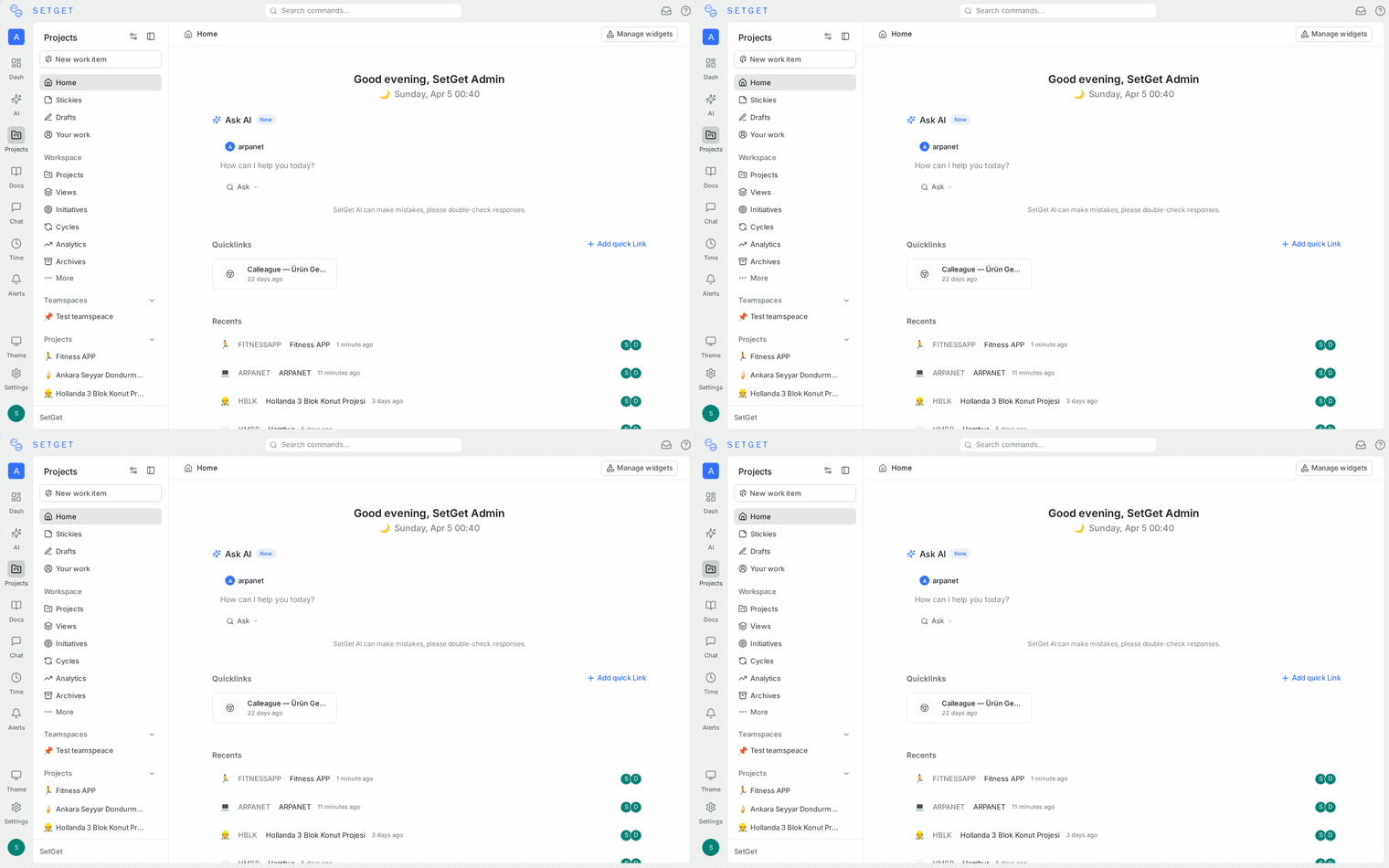
Widgets are the building blocks of the homepage. Each widget is a self-contained card that displays a specific slice of your workspace data. SetGet provides a default set of widgets, all of which can be shown, hidden, or rearranged.
Assigned to me
This widget lists all work items currently assigned to you across every project in the workspace. Items are grouped by project and sorted by priority (Urgent first, then High, Medium, Low, None). Clicking any item opens it directly.
Overdue work items
Displays work items assigned to you whose due date has passed. Items are sorted with the oldest overdue item at the top. Each entry shows the item identifier, title, due date, and how many days overdue it is. Resolving or rescheduling an item removes it from this widget automatically.
Recent activity
A chronological feed of the latest actions you have performed or that involve you — status changes, new comments on your items, assignment updates, and mentions. The feed shows the last 30 events by default.
Cycle progress
If any active cycles exist in your projects, this widget shows a progress summary for each one. Information includes:
| Field | Description |
|---|---|
| Cycle name | The name of the active cycle |
| Project | Which project the cycle belongs to |
| Progress | Percentage of work items completed |
| Time remaining | Days left until the cycle end date |
| Burndown trend | Whether the team is ahead, on track, or behind schedule |
Created by me
Lists the most recent work items you created, regardless of current assignee. Useful for tracking items you filed and want to follow up on.
My stickies
Displays your pinned sticky notes for fast reference without leaving the homepage. You can create a new sticky directly from this widget.
Customizing the layout
You can tailor the homepage layout to match how you work.
Show or hide widgets
- Click the Customize button in the top-right corner of the homepage.
- A panel appears listing all available widgets with toggle switches.
- Turn a widget on or off.
- Close the panel — changes save automatically.
Rearrange widgets
- Open the Customize panel.
- Drag widgets up or down to change their display order.
- Widgets reflow on the homepage in the new order.
Widget size
Some widgets support a compact or expanded view. Click the expand icon on a widget header to toggle between the two modes. Expanded mode shows more rows of data; compact mode conserves vertical space.
TIP
Your homepage layout is stored per user, not per workspace. If you belong to multiple workspaces, each workspace can have its own homepage arrangement.
Quick action shortcuts
The homepage provides a row of quick-action buttons at the top of the page so you can start common tasks without navigating away:
| Action | What it does |
|---|---|
| New Work Item | Opens the work item creation modal with the last-used project preselected |
| New Page | Creates a new page document in the last-used project |
| New Project | Opens the project creation flow |
| Invite Member | Opens the member invitation dialog |
Keyboard users can press C from the homepage to open the new work item modal directly.
Greeting and date context
The top of the homepage displays a greeting that includes your display name and the current date. This section also shows a high-level summary:
- Total work items assigned to you
- How many are overdue
- How many are due today
These numbers update in real time as work items change.
Empty state
If you are new to a workspace and have no assignments or activity yet, the homepage displays onboarding guidance:
- A prompt to create your first project
- A link to invite team members
- A shortcut to explore workspace settings
Once data exists, the widgets replace the onboarding content automatically.
WARNING
Widgets reflect your personal assignments and activity. If a widget appears empty, it means you have no relevant data for that category — not that the workspace is empty.
Filtering widget data
Some widgets support inline filtering to narrow what they display:
- Assigned to me — filter by project, priority, or status
- Overdue work items — filter by project
- Recent activity — filter by event type (comments, status changes, assignments)
Filter selections within widgets persist across sessions. Each widget remembers its own filter state independently.
Performance considerations
The homepage loads widget data in parallel. Each widget fetches only the data it needs, so a slow network connection affects individual widgets independently. If a widget takes longer than expected, a loading skeleton is shown in place of the content.
For workspaces with thousands of work items, the homepage queries are optimized to return only items relevant to the current user, keeping load times fast regardless of total workspace size.
Homepage vs. Your Work
The homepage and the Your Work view may seem similar since both show your assigned items, but they serve different purposes:
| Aspect | Homepage | Your Work |
|---|---|---|
| Purpose | Overview dashboard with multiple widgets | Focused work item list |
| Scope | Assignments, activity, cycles, stickies | Only work items assigned to you |
| Layout | Widget cards | Full list/board/spreadsheet view |
| Filtering | Per-widget inline filters | Full filter bar with all properties |
| Best for | Starting your day, quick orientation | Deep work triage, bulk updates |
Use the homepage for a morning check-in and switch to Your Work when you need to focus on triaging or updating your items in detail.
Related pages
- Workspace Overview — Create and configure workspaces
- Sidebar Navigation — Customize the sidebar layout
- Command Palette — Quick access to any action
- Your Work — Full view of your assigned work items
- Cycles — Understand cycle planning and progress