
AI Actions
AI Actions are the mechanism through which SetGet AI makes changes to your workspace. Instead of executing changes immediately, the AI always proposes an action first and waits for your explicit confirmation. This keeps you in full control of what happens in your workspace.
What are AI actions?
An AI action is a structured proposal to create, update, or modify something in your workspace. When you ask SetGet AI to do something that involves changing data — like creating a work item, updating a status, or adding a comment — the AI generates an action card that shows exactly what will happen.
You then decide whether to:
- Confirm — Execute the proposed action as-is.
- Modify — Ask the AI to adjust the action before confirming.
- Reject — Cancel the action entirely.
This confirmation flow is a safety mechanism. It ensures the AI never makes unintended changes, even if it misinterprets your request.
The action confirmation flow
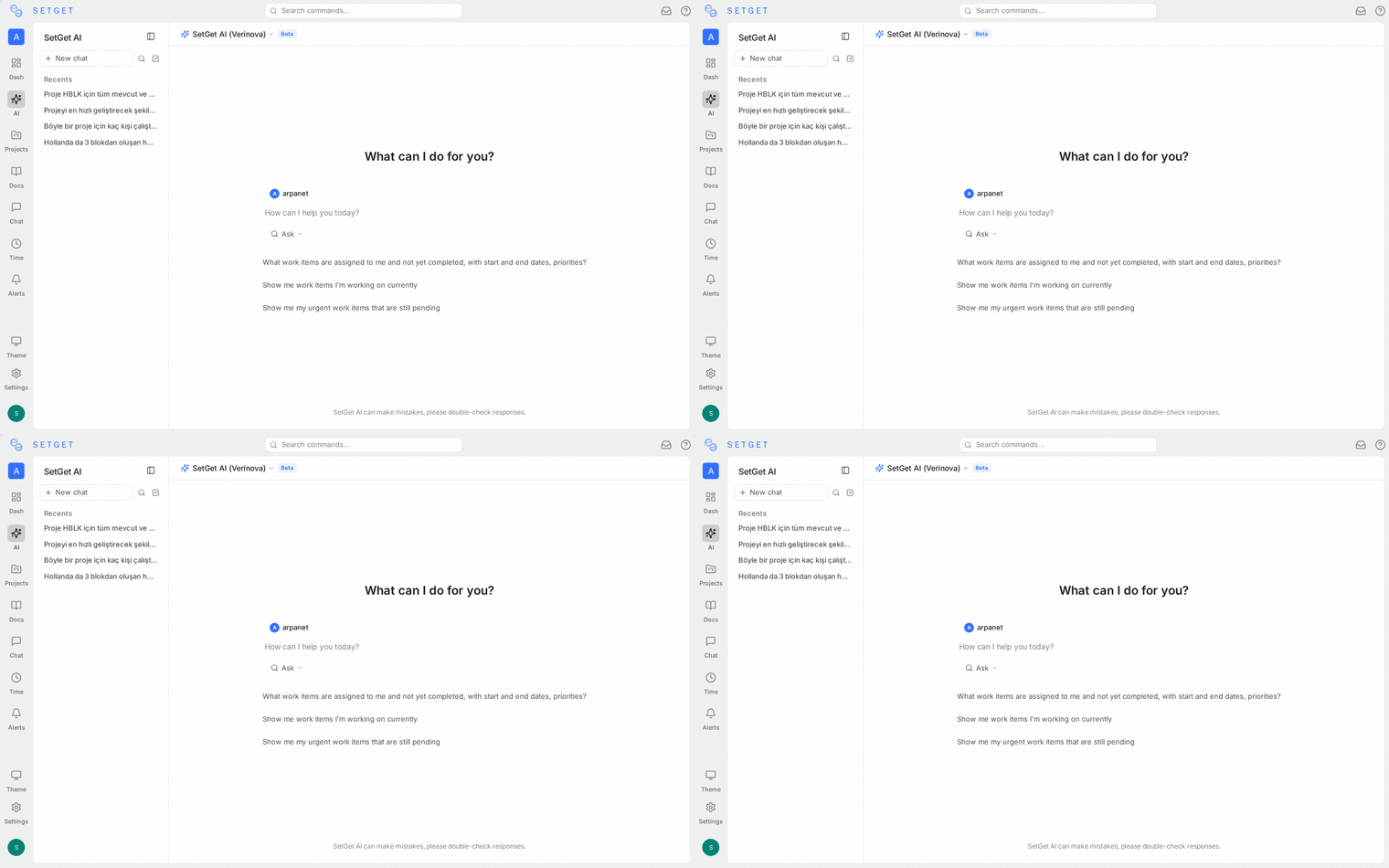
Here is how the flow works step by step:
Step 1: You make a request
You type a natural language request in AI Chat that involves a workspace change. For example:
"Create a high-priority bug in the WEB project titled 'Dropdown menu clips on small screens'"
Step 2: AI proposes an action
The AI parses your request, identifies the type of action, and generates a structured action card:
Action: Create Work Item
Project: WEB
Title: Dropdown menu clips on small screens
Type: Bug
Priority: High
State: Backlog (default)
Assignee: Unassigned
The action card appears in the chat as an interactive element with Confirm and Cancel buttons.
Step 3: You review the action
Before clicking anything, review the details:
- Is the correct project selected?
- Are the properties accurate?
- Is anything missing that you want to add?
Step 4: You decide
| Decision | What happens |
|---|---|
| Confirm | The action is executed immediately and reflected in the workspace |
| Cancel | The action is discarded; nothing changes in the workspace |
| Modify | You send a follow-up message to adjust the action |
Step 5: Confirmation feedback
After confirming, the AI provides feedback confirming the action was executed successfully:
"Done. Created WEB-156: 'Dropdown menu clips on small screens' with High priority in the Backlog state."
If the action fails (for example, due to a permission issue), the AI reports the error and suggests alternatives.
Action types
SetGet AI supports the following action types:
Create work item
Creates a new work item in a specified project.
| Property | Required | Description |
|---|---|---|
| Project | Yes | Target project for the new item |
| Title | Yes | Work item title |
| Priority | No | None, Low, Medium, High, Urgent |
| State | No | Initial state (defaults to Backlog) |
| Assignee | No | Member to assign |
| Labels | No | One or more labels to attach |
| Due date | No | Target completion date |
| Description | No | Detailed description of the item |
| Estimate | No | Effort estimate (if estimation enabled) |
Update work item properties
Modifies one or more properties of an existing work item.
| Property | Can be updated | Notes |
|---|---|---|
| Title | Yes | Rename the work item |
| State | Yes | Move to a different workflow state |
| Priority | Yes | Change urgency level |
| Assignee | Yes | Reassign to a different member |
| Labels | Yes | Add or remove labels |
| Due date | Yes | Set or change the target date |
| Estimate | Yes | Update the effort estimate |
| Cycle | Yes | Add to or remove from a cycle |
| Module | Yes | Add to or remove from a module |
Add comment
Posts a comment on an existing work item.
| Property | Required | Description |
|---|---|---|
| Work item | Yes | The item to comment on (by ID) |
| Comment text | Yes | The content of the comment |
TIP
When the AI proposes adding a comment, you can review the exact text before it is posted. This is useful when you ask the AI to draft a status update or technical note.
Modifying a proposed action
If the AI's proposed action is close but not quite right, you do not need to cancel and start over. Instead, send a follow-up message in the same thread:
Original proposal:
Action: Create Work Item
Project: WEB
Title: Dropdown menu clips on small screens
Priority: High
Assignee: Unassigned
Your follow-up: "Also assign it to Sarah and add the label 'ui-bug'"
Updated proposal:
Action: Create Work Item
Project: WEB
Title: Dropdown menu clips on small screens
Priority: High
Assignee: Sarah
Labels: ui-bug
The AI replaces the pending action with an updated version for your review.
Rejecting actions
Click Cancel on any action card to reject it. The action is discarded and nothing changes in your workspace. You can then:
- Rephrase your request for a different action.
- Ask the AI a question instead.
- Close the thread entirely.
Rejected actions are still visible in the thread history for reference, but they are clearly marked as canceled.
Action history
Every confirmed action is recorded in the AI action history, providing an audit trail of all AI-assisted changes.
Viewing action history
- Open the AI panel from the sidebar.
- Click Action History (or navigate to Settings > AI > Action History).
- Browse the list of past actions.
Action history details
Each entry in the action history shows:
| Field | Description |
|---|---|
| Timestamp | When the action was confirmed and executed |
| Actor | Which workspace member confirmed the action |
| Action type | Create, Update, or Comment |
| Target | The work item or entity that was affected |
| Details | The specific properties that were set or changed |
| Thread | Link to the AI chat thread where the action was proposed |
| Status | Success or failure |
Using action history for auditing
Action history is useful for:
- Accountability — Know who confirmed which AI-driven changes.
- Debugging — If something looks wrong, trace it back to the AI action that caused it.
- Compliance — Maintain a record of AI-assisted modifications for regulatory requirements.
WARNING
Action history records only confirmed actions. Rejected or canceled actions are visible in their respective chat threads but do not appear in the global action history.
Permissions and actions
AI actions respect your workspace permissions. The AI can only propose actions that your account is authorized to perform:
| Role | Allowed actions |
|---|---|
| Admin | All action types across all projects |
| Member | Create and update items in projects they belong to |
| Viewer | No actions available — AI chat is read-only analysis |
| Guest | Limited to projects they have been invited to |
If the AI proposes an action you do not have permission to execute, the confirmation will fail with a permission error. The AI will explain what happened and suggest contacting a workspace admin.
Best practices
- Always read the action card — Even for simple requests, verify that the AI selected the right project, assignee, and properties.
- Use item IDs for updates — When updating existing items, reference them by ID (e.g.,
WEB-42) to avoid ambiguity. - Be cautious with bulk actions — Bulk operations affect multiple items. Review the full list before confirming.
- Modify rather than reject — If an action is mostly correct, send a follow-up to adjust it rather than starting over.
- Check action history regularly — Periodically review the action history to ensure AI-driven changes align with team expectations.
Related pages
- SetGet AI Overview — General AI capabilities and architecture
- AI Chat — Using the thread-based AI conversation interface
- AI Credits — Credit consumption for actions
- Work Items — Understanding the items AI can create and modify
- Security — Workspace roles and permissions