
Cycle'lar ile Planlama
SetGet'teki cycle'lar, zaman sınırlı yinelemelerdir — Scrum'daki sprint'lere benzer — ekibinizin tahmin edilebilir aralıklarda iş planlamasına, odaklanmasına ve teslim etmesine yardımcı olur. Her cycle'ın tanımlanmış bir başlangıç ve bitiş tarihi, tamamlanacak iş öğeleri seti ve ilerlemeyi takip etmek için yerleşik analitiği vardır. Bu rehber, oluşturmadan tamamlamaya kadar tam cycle iş akışını kapsar.
Ön koşullar
Bu rehbere başlamadan önce şunlara sahip olduğunuzdan emin olun:
- En az bir proje içeren bir SetGet çalışma alanı.
- Bir cycle'a planlanmaya hazır, projenizde birkaç iş öğesi.
- Projede Üye düzeyinde veya daha yüksek erişim. Yalnızca uygun izinlere sahip üyeler cycle oluşturabilir ve yönetebilir.
Adım 1 — Döngüler Bölümüne Gidin
- Çalışma alanı kenar çubuğundan projenizi açın.
- Proje kenar çubuğu gezintisinde Döngüler'e tıklayın.
- Döngüler sayfası, mevcut tüm döngüleri duruma göre düzenlenmiş olarak gösterir: Aktif, Yaklaşan ve Tamamlanan.
Buraya ilk kez geliyorsanız sayfa boş olacak ve ilk döngünüzü oluşturmanız için bir istem göreceksiniz.
Adım 2 — Yeni Bir Döngü Oluşturun
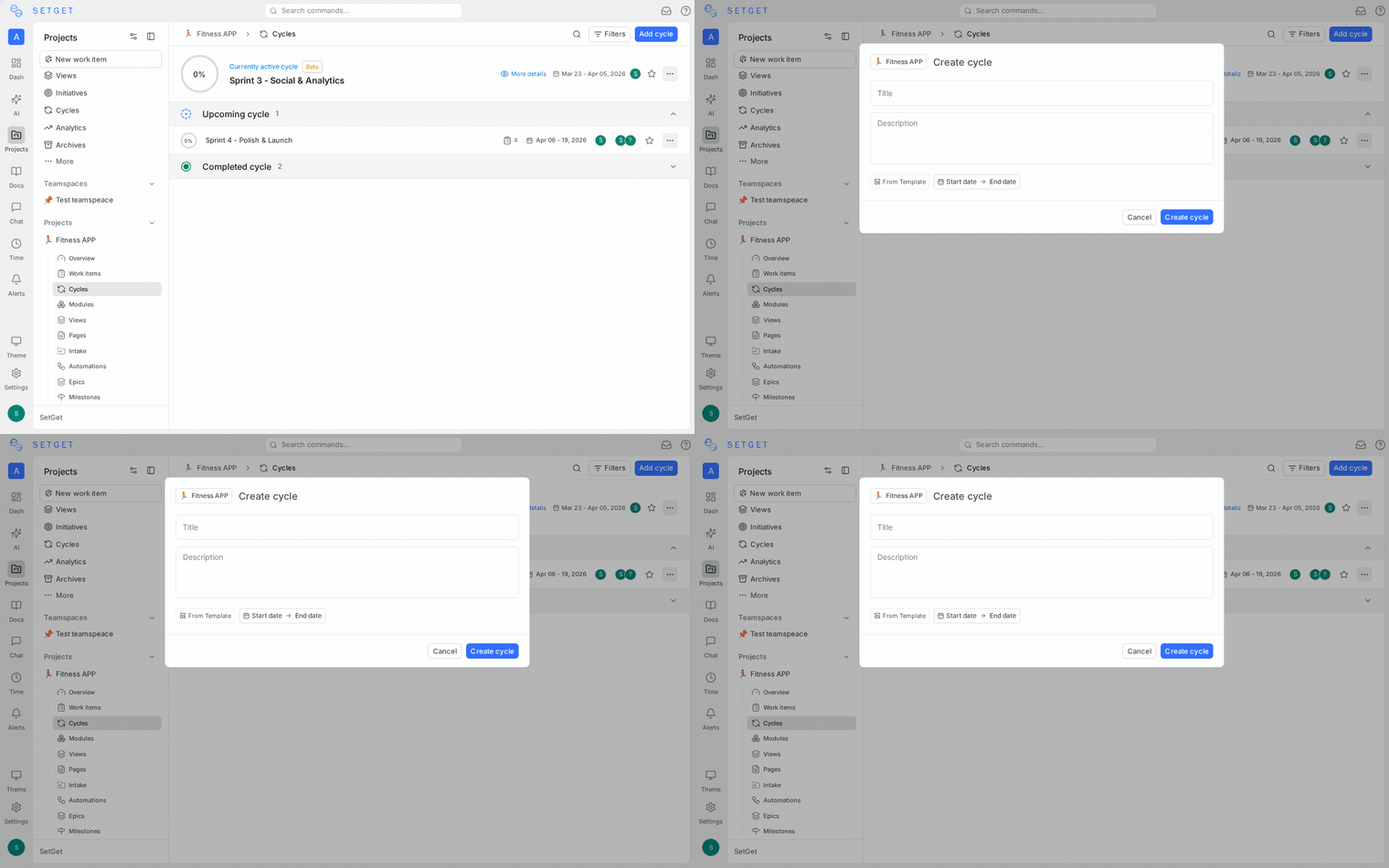
- Döngüler sayfasının üstündeki Döngü oluştur butonuna (veya + simgesine) tıklayın.
- Döngü ayrıntılarını doldurun:
- Ad: Döngüye "Sprint 12" veya "31 Mart Haftası" gibi açıklayıcı bir ad verin.
- Başlangıç tarihi: Döngünün başladığı tarih. Seçmek için tarih seçiciye tıklayın.
- Bitiş tarihi: Döngünün sona erdiği tarih. Tipik döngü uzunlukları bir veya iki haftadır.
- Açıklama (isteğe bağlı): Bu döngünün hedefleri veya teması hakkında bağlam ekleyin.
- Döngüyü kaydetmek için Oluştur'a tıklayın.
UYARI
Döngü tarihleri, aynı projedeki diğer aktif döngülerle çakışamaz. Bir doğrulama hatası görürseniz, tarih aralığının mevcut bir döngüyle çakışmadığını kontrol edin.
Adım 3 — Döngüye İş Öğeleri Ekleyin
İş öğelerini bir cycle'a eklemenin birkaç yolu vardır:
Döngü Detay Sayfasından
- Adını tıklayarak yeni oluşturduğunuz döngüyü açın.
- İş öğeleri ekle (veya döngü görünümü içindeki + butonu) üzerine tıklayın.
- Henüz bir döngüde bulunmayan tüm proje iş öğelerini listeleyen bir modal görünür.
- Dahil etmek istediğiniz öğeleri bulmak için arama yapın veya kaydırın.
- Bir veya daha fazla öğe seçin ve Ekle'ye tıklayın.
Bir İş Öğesinin Detay Görünümünden
- Projenizdeki herhangi bir iş öğesini açın.
- Özellikler kenar çubuğunda Döngü alanını bulun.
- Üzerine tıklayın ve açılır listeden hedef döngüyü seçin.
- Öğe hemen o döngüye eklenir.
Liste veya Kanban Görünümlerinden
- Onay kutularını kullanarak bir veya daha fazla iş öğesi seçin (Liste veya Hesap Tablosu görünümünde).
- Altta görünen Toplu işlemler çubuğunu kullanın.
- Döngüye ekle'yi seçin ve hedef döngüyü belirleyin.
İPUCU
Öğeleri başlamadan önce yaklaşan bir cycle'a ekleyebilirsiniz. Bu, ekibin neye taahhüt edeceğine önceden karar verdiği sprint planlama oturumları için kullanışlıdır.
Adım 4 — Döngü Boyunca Çalışın
Döngü başlangıç tarihi geldiğinde, döngü Aktif durumuna geçer. Aktif dönem boyunca:
- Ekip üyeleri döngüdeki öğeler üzerinde çalışır ve ilerledikçe durumları günceller.
- Döngü detay sayfası, tüm dahil edilen iş öğelerini mevcut durumlarıyla gösterir.
- Proje görünümünde olduğu gibi, cycle öğelerini görüntülemek için herhangi bir görünümü (Liste, Kanban, Tablo, Takvim, Gantt) kullanabilirsiniz.
Proje görünümünüzü aktif döngüye odaklamak için Döngü filtresini kullanın ve mevcut döngüyü seçin. Bu, sprintin parçası olmayan öğeleri gizler.
Adım 5 — İlerlemeyi Takip Edin
SetGet, cycle'ın nasıl gittiğini izlemek için birkaç araç sağlar.
İlerleme Çubuğu
Döngü detay sayfasının üstünde, bir ilerleme çubuğu tamamlanan iş öğelerinin yüzdesini gösterir ("Bitti" durumuna taşınan). Çubuk renk kodludur:
- Yeşil — Tamamlanan öğeler.
- Mavi — Devam eden öğeler.
- Gri — Henüz başlanmayan öğeler.
Burndown Grafiği
Burndown grafiği, kalan (tamamlanmamış) öğelerin sayısını zaman içinde ideal trend çizgisiyle karşılaştırmalı olarak gösterir.
- Döngü detay sayfasını açın.
- Analitik sekmesine gidin.
- Burndown grafiği günlük olarak güncellenir. İdeal çizgi, iş döngü süresi boyunca eşit dağıtılsaydı beklenen tamamlanma hızını gösterir.
Gerçek çizgi ideal çizginin üzerindeyse, ekip geri kalmaktadır. Altındaysa, ekip ileridedir.
Kapsam Değişiklikleri
Analitik görünümü ayrıca kapsam değişikliklerini de takip eder — döngü başladıktan sonra eklenen veya kaldırılan öğeler. Aktif bir döngü sırasında sık kapsam değişiklikleri planlama eksikliklerine işaret edebilir.
Adım 6 — Döngü Analitiğini İnceleyin
Burndown grafiğinin ötesinde, döngü analitik bölümü şunları sağlar:
- Tamamlanma oranı: Bitiş tarihine kadar tamamlanan öğelerin yüzdesi.
- Duruma göre öğeler: Kaç öğenin hangi durumda bittiğinin dağılımı (Bitti, Devam Ediyor, Backlog vb.).
- Önceliğe göre öğeler: Tamamlanan ve tamamlanmayan öğelerin öncelik düzeyleri genelinde dağılımı.
- Atanana göre öğeler: İşin ekip üyeleri arasında nasıl dağıtıldığı ve tamamlandığı.
Bu metrikler, ekibin retrospektif toplantılar yapmasına ve gelecekteki planlama doğruluğunu iyileştirmesine yardımcı olur.
Adım 7 — Tamamlanmamış Öğeleri Yönetin
Bir döngü bitiş tarihine ulaştığında, bazı öğeler hâlâ tamamlanmamış olabilir. SetGet bunları düzenlemek için temiz bir yol sunar.
- Tamamlanan döngüyü açın.
- Tamamlanmamış öğeler varsa, SetGet bunlarla ne yapılacağını soran bir istem görüntüler.
- Üç seçeneğiniz var:
- Sonraki döngüye aktar: Tüm tamamlanmamış öğeleri otomatik olarak bir sonraki yaklaşan döngüye taşıyın.
- Belirli bir döngüye aktar: Öğeleri taşımak için farklı bir döngü seçin.
- Bu döngüde tut: Öğeleri oldukları yerde bırakın (tarihsel doğruluk için tamamlanan döngüyle ilişkili kalırlar).
İPUCU
Tamamlanmamış öğeleri aktarmak tüm geçmişlerini korur — yorumlar, etkinlik ve önceki döngü ilişkileri kaybolmaz. Öğe yalnızca ek bir döngü referansı kazanır.
Adım 8 — Döngüleri Tamamlayın ve Arşivleyin
Döngünün bitiş tarihi geçtikten ve tamamlanmamış öğeleri işledikten sonra:
- Döngü, Döngüler sayfasındaki Tamamlanan bölümüne taşınır.
- Tamamlanan döngüler, tarihsel referans ve analitik için görünür kalır.
- Öğelerini, grafiklerini ve metriklerini incelemek için tamamlanan bir döngüyü hâlâ açabilirsiniz.
Tamamlanan döngüler salt okunurdur. Bunlardan öğe ekleyemez veya kaldıramazsınız, ancak yine de ayrı iş öğelerindeki tüm yorumlara ve etkinliklere erişebilirsiniz.
En İyi Uygulamalar
- Döngüleri kısa tutun: Bir veya iki haftalık döngüler düzenli bir ritim oluşturur ve planlama riskini azaltır.
- Döngü başlamadan önce planlayın: Anlık olarak eklemek yerine bir planlama oturumunda yaklaşan bir döngüye öğeler ekleyin.
- Kapsam değişikliklerini sınırlayın: Acil olmadıkça döngü ortasında yeni öğeler eklemeyin. Analitik görünümünde eklemeleri takip edin.
- Her döngüden sonra analitiği inceleyin: Ekibin gerçekçi olarak ne kadar iş yapabileceğini kalibre etmek için tamamlanma oranı ve burndown verilerini kullanın.
- Döngüleri tutarlı şekilde adlandırın: Döngü listesinin kolayca taranabilmesi için "Sprint 1", "Sprint 2" gibi bir adlandırma kuralı veya "31 Mar - 13 Nis" gibi tarih tabanlı adlar kullanın.
Özet
Artık döngü oluşturmayı, iş öğeleri eklemeyi, tükenme (burndown) grafiği ve analitikle ilerlemeyi takip etmeyi, tamamlanmamış işleri aktarmayı ve tamamlanan döngüleri incelemeyi biliyorsunuz. Döngüler, ekibinizin teslimat sürecine tahmin edilebilirlik ve odak getirmenin en etkili yollarından biridir.
İlgili Sayfalar
- Döngüler Referansı — Döngü özellikleri ve ayarları için tam referans.
- Modüller — İşi birden fazla döngü genelinde özellik veya girişime göre düzenleyin.
- İşi Düzenleme ve Görüntüleme — Döngü öğelerini görüntülemek için yerleşim ve filtreleri kullanın.
- İş Öğesi Özellikleri — Döngü ataması dahil tüm özellikler için referans.
- Toplu İşlemler — Bir döngüye aynı anda birden fazla öğe ekleyin.