
Storage Configuration
SetGet uses S3-compatible object storage for all file operations — user uploads, attachments on work items, profile images, workspace logos, page assets, and exported data. The Storage Configuration page in the Admin Panel lets you connect, test, and monitor your storage backend.
Navigate to Admin Panel > Storage or go directly to /backoffice/settings/storage.
Storage architecture
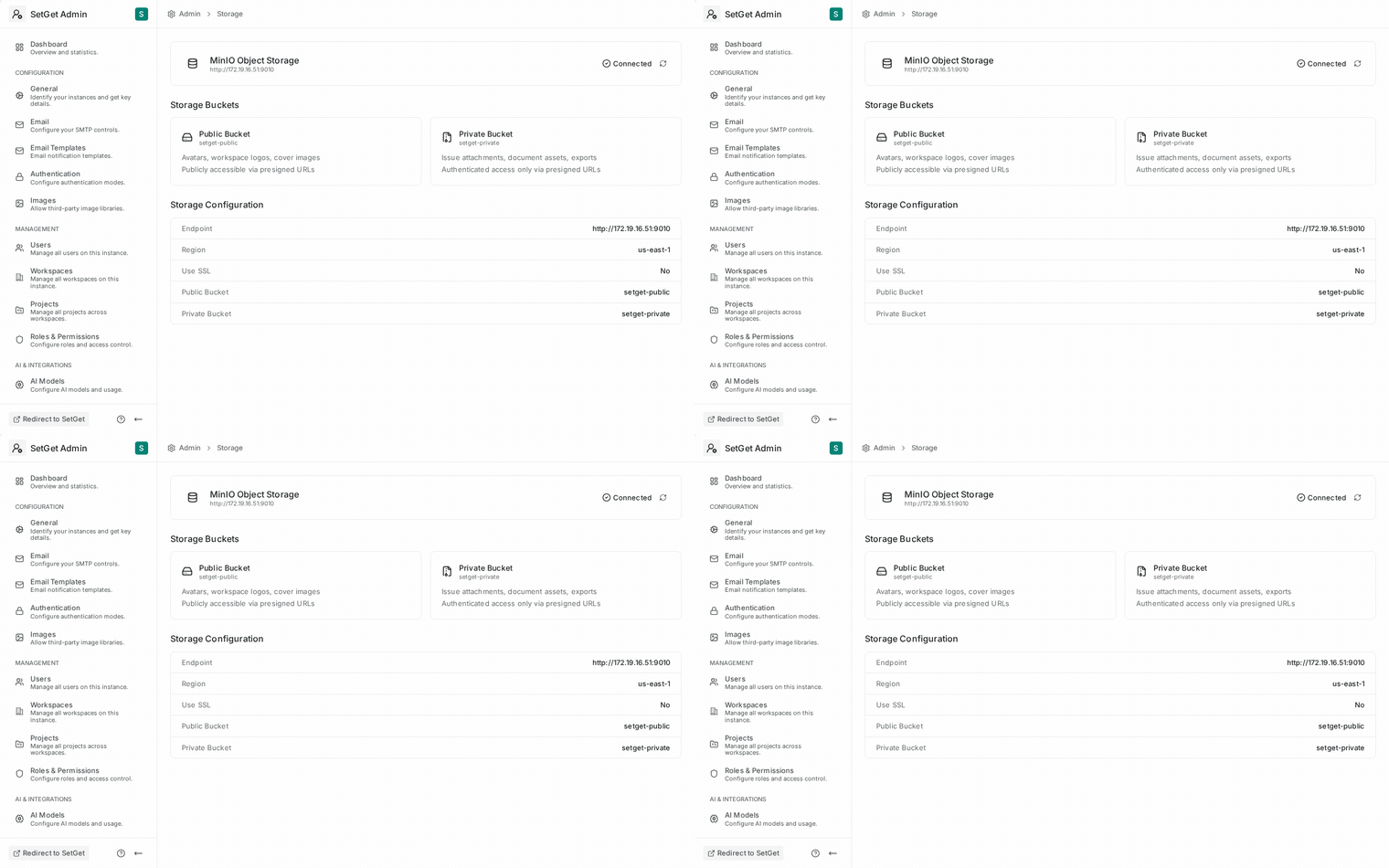
SetGet uses a two-bucket model to separate publicly accessible assets from private files:
| Bucket | Purpose | Access |
|---|---|---|
| setget-public | Profile images, workspace logos, public assets | Publicly readable, write via API only |
| setget-private | Attachments, exports, private uploads | Authenticated access only (presigned URLs) |
How uploads work
SetGet uses a two-phase upload process:
- Phase 1 — Presigned POST: The frontend requests a presigned upload URL from the API. The API generates a time-limited presigned POST URL and returns it to the frontend.
- Phase 2 — Direct upload + confirm: The frontend uploads the file directly to the storage backend using the presigned URL, then calls the API to confirm the upload. The API validates the upload and stores the file reference in MongoDB.
This approach keeps large file payloads off the API server and enables efficient parallel uploads.
Configuration fields
| Field | Description | Required | Environment Variable |
|---|---|---|---|
| Storage Endpoint | URL of the MinIO or S3 endpoint | Yes | SETGET_STORAGE_ENDPOINT |
| Access Key | Storage access key ID | Yes | SETGET_STORAGE_ACCESS_KEY |
| Secret Key | Storage secret key | Yes | SETGET_STORAGE_SECRET_KEY |
| Public Bucket | Bucket name for public assets | Yes | SETGET_STORAGE_PUBLIC_BUCKET |
| Private Bucket | Bucket name for private files | Yes | SETGET_STORAGE_PRIVATE_BUCKET |
| Region | S3 region (required for AWS S3, optional for MinIO) | No | SETGET_STORAGE_REGION |
| Use SSL | Use HTTPS for storage connections | No | SETGET_STORAGE_USE_SSL |
| Path Style | Use path-style URLs (required for MinIO) | No | SETGET_STORAGE_PATH_STYLE |
Step-by-step setup
Using MinIO (recommended for self-hosted)
- Install and start MinIO on your server.
- Create the required buckets:
# Install MinIO client
mc alias set setget http://your-minio-host:9010 ACCESS_KEY SECRET_KEY

# Create buckets
mc mb setget/setget-public
mc mb setget/setget-private

# Set public bucket policy (read-only for anonymous users)
mc anonymous set download setget/setget-public- In the Admin Panel, enter the configuration:
| Field | Value |
|---|---|
| Storage Endpoint | http://your-minio-host:9010 |
| Access Key | Your MinIO access key |
| Secret Key | Your MinIO secret key |
| Public Bucket | setget-public |
| Private Bucket | setget-private |
| Region | us-east-1 (default for MinIO) |
| Use SSL | No (or Yes if MinIO is behind a TLS proxy) |
| Path Style | Yes |
- Click Test Connection to verify.
- Click Save to persist.
Using AWS S3
- Create an S3 bucket for public assets and another for private files in the AWS Console.
- Create an IAM user with programmatic access and attach a policy granting access to both buckets.
- Configure the public bucket with a public-read bucket policy.
- In the Admin Panel:
| Field | Value |
|---|---|
| Storage Endpoint | https://s3.{region}.amazonaws.com |
| Access Key | IAM access key ID |
| Secret Key | IAM secret access key |
| Public Bucket | Your public bucket name |
| Private Bucket | Your private bucket name |
| Region | Your AWS region (e.g., eu-west-1) |
| Use SSL | Yes |
| Path Style | No |
Using other S3-compatible providers
SetGet works with any S3-compatible storage provider, including:
| Provider | Endpoint Format |
|---|---|
| DigitalOcean Spaces | https://{region}.digitaloceanspaces.com |
| Backblaze B2 | https://s3.{region}.backblazeb2.com |
| Wasabi | https://s3.{region}.wasabisys.com |
| Cloudflare R2 | https://{account_id}.r2.cloudflarestorage.com |
TIP
When using a provider other than MinIO, set Path Style to No (virtual-hosted style) unless the provider's documentation specifically requires path-style URLs.
Test connection
The Test Connection button performs the following checks:
| Check | What it verifies |
|---|---|
| Endpoint reachable | The storage endpoint responds to requests |
| Credentials valid | The access key and secret key authenticate successfully |
| Public bucket exists | The public bucket is accessible |
| Private bucket exists | The private bucket is accessible |
| Write test | A small test object can be written and read back |
| Delete test | The test object can be deleted |
If any check fails, the error message indicates which step failed and the underlying error (connection refused, access denied, bucket not found, etc.).
Storage usage monitoring
The Storage page includes a usage dashboard showing:
| Metric | Description |
|---|---|
| Total storage used | Combined size of all objects across both buckets |
| Public bucket usage | Size and object count in the public bucket |
| Private bucket usage | Size and object count in the private bucket |
| Upload count (30 days) | Number of files uploaded in the last 30 days |
| Download count (30 days) | Number of file downloads in the last 30 days |
| Largest files | Top 10 largest objects by size |
| Storage by workspace | Breakdown of storage usage per workspace |
Setting storage limits
| Setting | Description | Default |
|---|---|---|
| Max file size | Maximum size for a single upload | 100 MB |
| Per-workspace storage limit | Maximum total storage per workspace (0 = unlimited) | 0 |
| Instance storage limit | Maximum total storage across the instance | Unlimited |
| Allowed file types | Restrict uploads to specific MIME types (empty = all) | Empty |
WARNING
Changing the max file size does not affect files already uploaded. Existing files that exceed the new limit remain accessible but cannot be re-uploaded.
CDN configuration
For improved performance, you can place a CDN in front of the public storage bucket.
| Field | Description | Required |
|---|---|---|
| CDN URL | Base URL of the CDN (e.g., https://cdn.example.com) | No |
| CDN for public bucket only | Only rewrite public bucket URLs to use CDN | Yes (default) |
When a CDN URL is configured, SetGet rewrites public asset URLs to point to the CDN instead of the direct storage endpoint. This improves load times for profile images, workspace logos, and other public assets.
CDN setup guidelines
- Configure your CDN origin to point to the public bucket endpoint.
- Set appropriate cache headers (e.g.,
Cache-Control: public, max-age=31536000for immutable assets). - Enable CORS if the CDN domain differs from your SetGet instance domain.
- Enter the CDN URL in the Admin Panel and save.
TIP
Popular CDN options include Cloudflare, AWS CloudFront, Fastly, and Bunny CDN. Most can be configured in minutes to proxy an S3-compatible bucket.
Presigned URL configuration
| Setting | Description | Default |
|---|---|---|
| Upload URL expiry | How long presigned upload URLs remain valid | 30 minutes |
| Download URL expiry | How long presigned download URLs remain valid | 60 minutes |
TIP
Keep presigned URL expiry times short to reduce the window for unauthorized access. 30 minutes for uploads and 60 minutes for downloads is sufficient for most use cases.
Environment variable reference
All storage settings can be configured via environment variables. Environment variables take precedence over Admin Panel values.
export SETGET_STORAGE_ENDPOINT="http://172.19.16.51:9010"
export SETGET_STORAGE_ACCESS_KEY="your-access-key"
export SETGET_STORAGE_SECRET_KEY="your-secret-key"
export SETGET_STORAGE_PUBLIC_BUCKET="setget-public"
export SETGET_STORAGE_PRIVATE_BUCKET="setget-private"
export SETGET_STORAGE_REGION="us-east-1"
export SETGET_STORAGE_USE_SSL="false"
export SETGET_STORAGE_PATH_STYLE="true"
WARNING
Never commit storage credentials to source control. Use environment variables, a secrets manager, or a .env file excluded from version control.
Troubleshooting
| Problem | Cause | Solution |
|---|---|---|
| Test connection fails with "connection refused" | Endpoint unreachable | Verify MinIO/S3 is running and the endpoint URL is correct |
| "Access denied" error | Wrong credentials or insufficient permissions | Check access key, secret key, and IAM/MinIO policy |
| "Bucket not found" | Bucket does not exist | Create the bucket using mc mb or the storage provider's console |
| Uploads fail silently | CORS not configured on storage | Add CORS rules allowing PUT/POST from your SetGet domain |
| Images not loading | Public bucket not set to public-read | Run mc anonymous set download bucket-name for MinIO |
| Large uploads timeout | Network or proxy limit | Increase proxy timeout and body size limits (e.g., nginx client_max_body_size) |
CORS configuration for storage
For the two-phase upload to work, the storage backend must allow cross-origin requests from your SetGet domain. Configure CORS on your MinIO or S3 bucket:
MinIO CORS
Create a cors.json file:
{
  "CORSRules": [
    {
      "AllowedOrigins": ["https://your-setget-domain.com"],
      "AllowedMethods": ["GET", "PUT", "POST", "DELETE", "HEAD"],
      "AllowedHeaders": ["*"],
      "ExposeHeaders": ["ETag"],
      "MaxAgeSeconds": 3600
    }
  ]
}
Apply it using the MinIO client:
mc cors set setget/setget-public cors.json
mc cors set setget/setget-private cors.json
AWS S3 CORS
In the AWS Console, navigate to your bucket, go to Permissions > CORS Configuration, and add the equivalent JSON policy.
Backup and disaster recovery
Storage backups are critical for data protection. SetGet does not manage storage backups directly — configure them at the MinIO or S3 provider level.
| Strategy | Tool | Description |
|---|---|---|
| Mirror | mc mirror | Replicate buckets to a secondary MinIO instance |
| Versioning | S3 versioning | Keep previous versions of every object |
| Lifecycle rules | S3 lifecycle policies | Automatically archive or delete old objects |
| Snapshot | Volume snapshot | Snapshot the MinIO data volume at the OS level |
TIP
Enable bucket versioning to protect against accidental deletions. Combined with lifecycle rules to expire old versions after 30 days, this provides a safety net without unlimited storage growth.
Related pages
- Admin Panel Overview — Navigate the Admin Panel
- Instance Setup — Initial storage configuration
- General Settings — Logo and favicon uploads use storage
- Workspace Management — Per-workspace storage usage