
Authentication Configuration
The Authentication page in the Admin Panel controls how users sign in to your SetGet instance. You can enable multiple authentication methods simultaneously, configure single sign-on (SSO) providers, and enforce password complexity requirements.
Navigate to Admin Panel > Authentication or go directly to /backoffice/settings/authentication.
Authentication methods overview
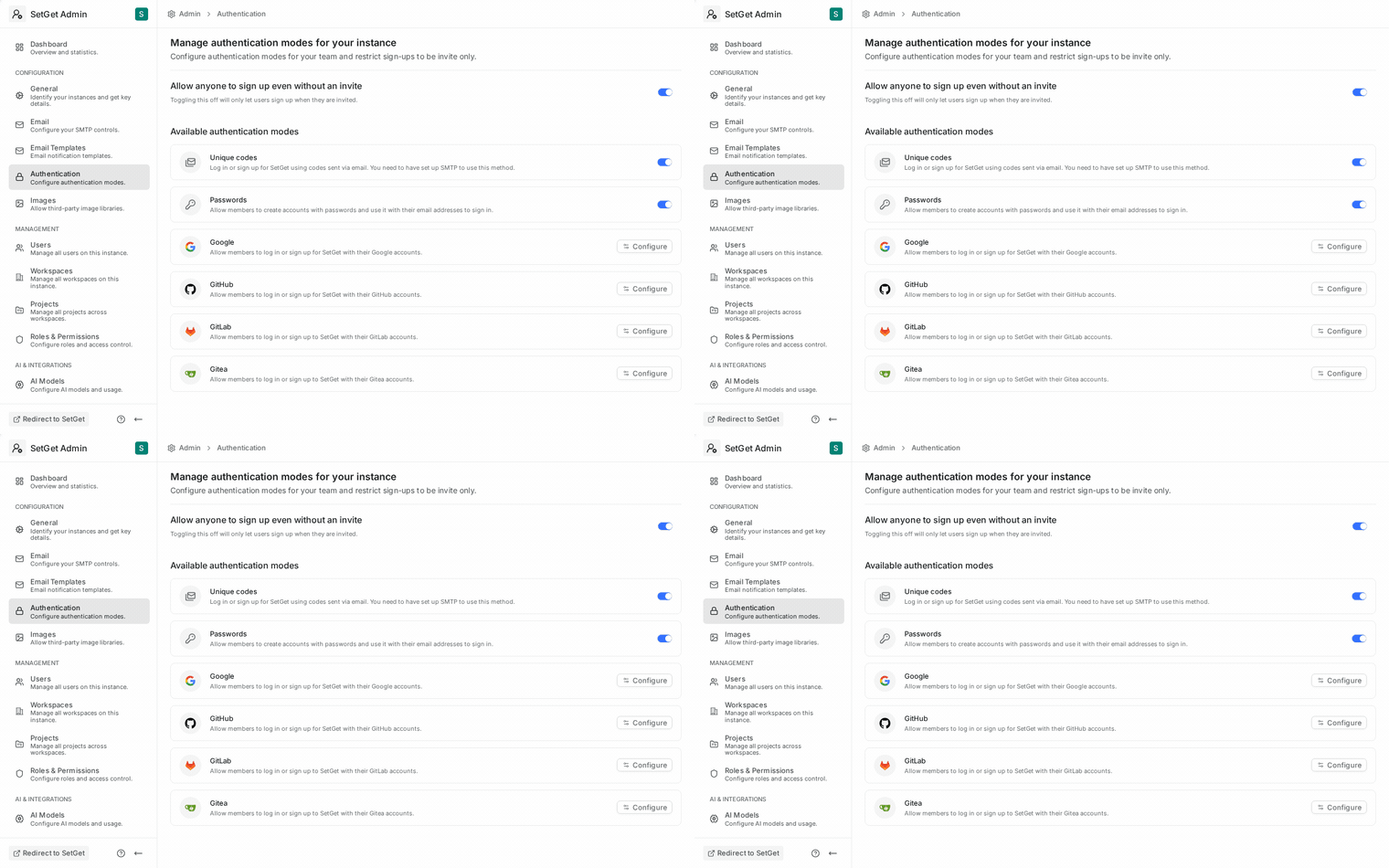
| Method | Description | Default |
|---|---|---|
| Email + Password | Traditional email and password login | Enabled |
| Magic Link | Passwordless login via email code | Enabled |
| Google OAuth | Sign in with Google account | Disabled |
| GitHub OAuth | Sign in with GitHub account | Disabled |
| GitLab OAuth | Sign in with GitLab account | Disabled |
| Gitea OAuth | Sign in with Gitea account | Disabled |
| SAML | Enterprise SSO via SAML 2.0 | Disabled |
| LDAP | Directory-based authentication | Disabled |
Sign-up settings
Control whether new users can create accounts on your instance.
| Setting | Description | Default |
|---|---|---|
| Allow sign-up | When enabled, anyone can create an account. When disabled, users must be invited. | Enabled |
| Allowed email domains | Restrict sign-up to specific email domains (e.g., example.com, corp.io). Leave empty to allow all domains. | Empty (all domains) |
TIP
For corporate deployments, disable open sign-up and use the allowed email domains setting together with an OAuth provider. This ensures only users with company email addresses can access the instance, and they authenticate through your identity provider.
Magic link login
Magic link authentication allows users to log in without a password. When a user requests a magic link, SetGet sends a one-time code to their email address.
| Setting | Description | Default |
|---|---|---|
| Enable magic link | Allow passwordless email login | Enabled |
| Code expiry | How long the magic link code remains valid | 10 minutes |
WARNING
Magic link login requires a working SMTP configuration. If SMTP is not configured, magic link requests will fail silently.
OAuth providers
OAuth allows users to sign in using their existing accounts at third-party identity providers. SetGet supports four OAuth providers.
Google OAuth
To configure Google OAuth:
- Go to the Google Cloud Console.
- Create a new project or select an existing one.
- Navigate to APIs & Services > Credentials.
- Click Create Credentials > OAuth client ID.
- Select Web application as the application type.
- Add the authorized redirect URI:
https://your-setget-domain.com/auth/google/callback - Copy the Client ID and Client Secret.
Enter the credentials in the Admin Panel:
| Field | Value |
|---|---|
| Client ID | From Google Cloud Console |
| Client Secret | From Google Cloud Console |
| Redirect URI | Auto-filled: {instance_url}/auth/google/callback |
GitHub OAuth
To configure GitHub OAuth:
- Go to GitHub Developer Settings.
- Click New OAuth App.
- Set the Homepage URL to your SetGet instance URL.
- Set the Authorization callback URL to:
https://your-setget-domain.com/auth/github/callback - Click Register application.
- Copy the Client ID and generate a Client Secret.
Enter the credentials in the Admin Panel:
| Field | Value |
|---|---|
| Client ID | From GitHub OAuth App settings |
| Client Secret | From GitHub OAuth App settings |
GitLab OAuth
To configure GitLab OAuth:
- Log in to your GitLab instance (or gitlab.com).
- Go to User Settings > Applications (or Admin > Applications for instance-wide apps).
- Create a new application with:
- Name:
SetGet - Redirect URI:
https://your-setget-domain.com/auth/gitlab/callback - Scopes:
read_user,openid,profile,email
- Name:
- Copy the Application ID and Secret.
Enter the credentials in the Admin Panel:
| Field | Value |
|---|---|
| Application ID | From GitLab application settings |
| Secret | From GitLab application settings |
| GitLab URL | Your GitLab instance URL (default: https://gitlab.com) |
Gitea OAuth
To configure Gitea OAuth:
- Log in to your Gitea instance as an admin.
- Go to Site Administration > Applications.
- Create a new OAuth2 application with:
- Application Name:
SetGet - Redirect URI:
https://your-setget-domain.com/auth/gitea/callback
- Application Name:
- Copy the Client ID and Client Secret.
Enter the credentials in the Admin Panel:
| Field | Value |
|---|---|
| Client ID | From Gitea application settings |
| Client Secret | From Gitea application settings |
| Gitea URL | Your Gitea instance URL |
WARNING
OAuth callback URLs must exactly match what you configure at the provider. Mismatched URLs cause "redirect_uri mismatch" errors. Always include the protocol (https://) and do not add a trailing slash after /callback.
SAML configuration
SAML 2.0 enables enterprise single sign-on through identity providers like Okta, Azure AD, OneLogin, and others.
Setting up SAML
- In the Admin Panel, enable SAML Authentication.
- Configure the following fields:
| Field | Description |
|---|---|
| Entity ID | A unique identifier for your SetGet instance (e.g., https://your-setget-domain.com/saml/metadata) |
| SSO URL | The identity provider's Single Sign-On URL |
| SLO URL | (Optional) Single Logout URL |
| Certificate | The identity provider's X.509 certificate (PEM format) |
| Name ID Format | Usually urn:oasis:names:tc:SAML:1.1:nameid-format:emailAddress |
- In your identity provider, configure a new SAML application with:
| IDP Setting | Value |
|---|---|
| ACS URL | https://your-setget-domain.com/auth/saml/acs |
| Entity ID | Same as configured above |
| Name ID | User's email address |
SAML attribute mapping
Map identity provider attributes to SetGet user fields:
| SetGet Field | Common SAML Attribute |
|---|---|
email or urn:oid:0.9.2342.19200300.100.1.3 | |
| Display Name | displayName or urn:oid:2.16.840.1.113730.3.1.241 |
| First Name | firstName or urn:oid:2.5.4.42 |
| Last Name | lastName or urn:oid:2.5.4.4 |
LDAP configuration
LDAP authentication lets users sign in with credentials from an LDAP or Active Directory server.
Setting up LDAP
- In the Admin Panel, enable LDAP Authentication.
- Configure the connection settings:
| Field | Description | Example |
|---|---|---|
| LDAP Host | Directory server hostname | ldap.example.com |
| LDAP Port | Connection port | 389 (LDAP) or 636 (LDAPS) |
| Use SSL | Enable LDAPS | Yes for port 636 |
| Bind DN | Service account distinguished name | cn=setget,ou=services,dc=example,dc=com |
| Bind Password | Service account password | •••••••• |
| Base DN | Search base for user lookups | ou=people,dc=example,dc=com |
| User Filter | LDAP filter for user search | (&(objectClass=person)(mail=)) |
| Email Attribute | Attribute containing user email | mail |
| Display Name Attribute | Attribute containing user name | displayName or cn |
TIP
Use the placeholder in the user filter. SetGet replaces it with the login identifier entered by the user.
- Click Test Connection to verify LDAP connectivity and authentication.
LDAP + password fallback
When LDAP is enabled, you can optionally allow users to fall back to local password authentication if the LDAP server is unreachable. This provides resilience but may reduce security guarantees.
| Setting | Description | Default |
|---|---|---|
| Allow local fallback | Permit local password login when LDAP is unavailable | Disabled |
Password policies
Configure minimum password requirements for local (email + password) authentication:
| Policy | Description | Default |
|---|---|---|
| Minimum length | Minimum number of characters | 8 |
| Require uppercase | At least one uppercase letter | No |
| Require lowercase | At least one lowercase letter | No |
| Require number | At least one digit | No |
| Require special character | At least one special character (!@#$%^&* etc.) | No |
| Password expiry | Days until password must be changed (0 = never) | 0 |
TIP
For enterprise deployments, enable all complexity requirements and set a password expiry of 90 days. This aligns with common compliance frameworks (SOC 2, ISO 27001).
Multiple authentication methods
You can enable multiple authentication methods simultaneously. When more than one method is active, the login page shows all available options:
- Email + password form (always visible when enabled)
- Magic link request button
- OAuth provider buttons (Google, GitHub, GitLab, Gitea)
- SAML login button
- LDAP login form
Users who sign up via OAuth or SAML can later set a local password from their profile settings, enabling them to use either method.
Security considerations
| Consideration | Recommendation |
|---|---|
| Always use HTTPS | OAuth and SAML require encrypted connections |
| Rotate OAuth secrets periodically | Reduces risk if credentials are compromised |
| Use short magic link expiry | 10 minutes is a good default |
| Enable password complexity | Prevents weak passwords |
| Restrict sign-up domains | Prevents unauthorized account creation |
| Test SAML/LDAP before enforcing | Ensure the configuration works before disabling password login |
Related pages
- Admin Panel Overview — Navigate the Admin Panel
- Email / SMTP Settings — Required for magic link authentication
- Security Settings — Brute-force protection and account lockout
- User Management — Manage user accounts and roles