
AI Configuration
SetGet includes AI-powered features that help teams work faster — intelligent issue suggestions, automated summaries, content generation, and conversational assistance. The AI Configuration page in the Admin Panel lets you connect an LLM provider and control how AI features are made available across the instance.
Navigate to Admin Panel > AI Configuration or go directly to /backoffice/settings/ai.
How AI works in SetGet
SetGet's AI features communicate with a configurable large language model (LLM) through a standard API. The platform sends context-aware prompts (based on workspace data, project context, and user queries) to the LLM and presents the responses within the UI.
AI features include:
| Feature | Description |
|---|---|
| AI Assistant | Conversational thread-based assistant accessible from the sidebar |
| Issue Suggestions | AI-generated issue titles, descriptions, and property recommendations |
| Content Generation | Draft page content, comments, and descriptions using AI |
| Smart Summaries | Summarize long threads, cycles, or module progress |
| Action Suggestions | AI recommends actions like assigning, labeling, or prioritizing |
LLM provider configuration
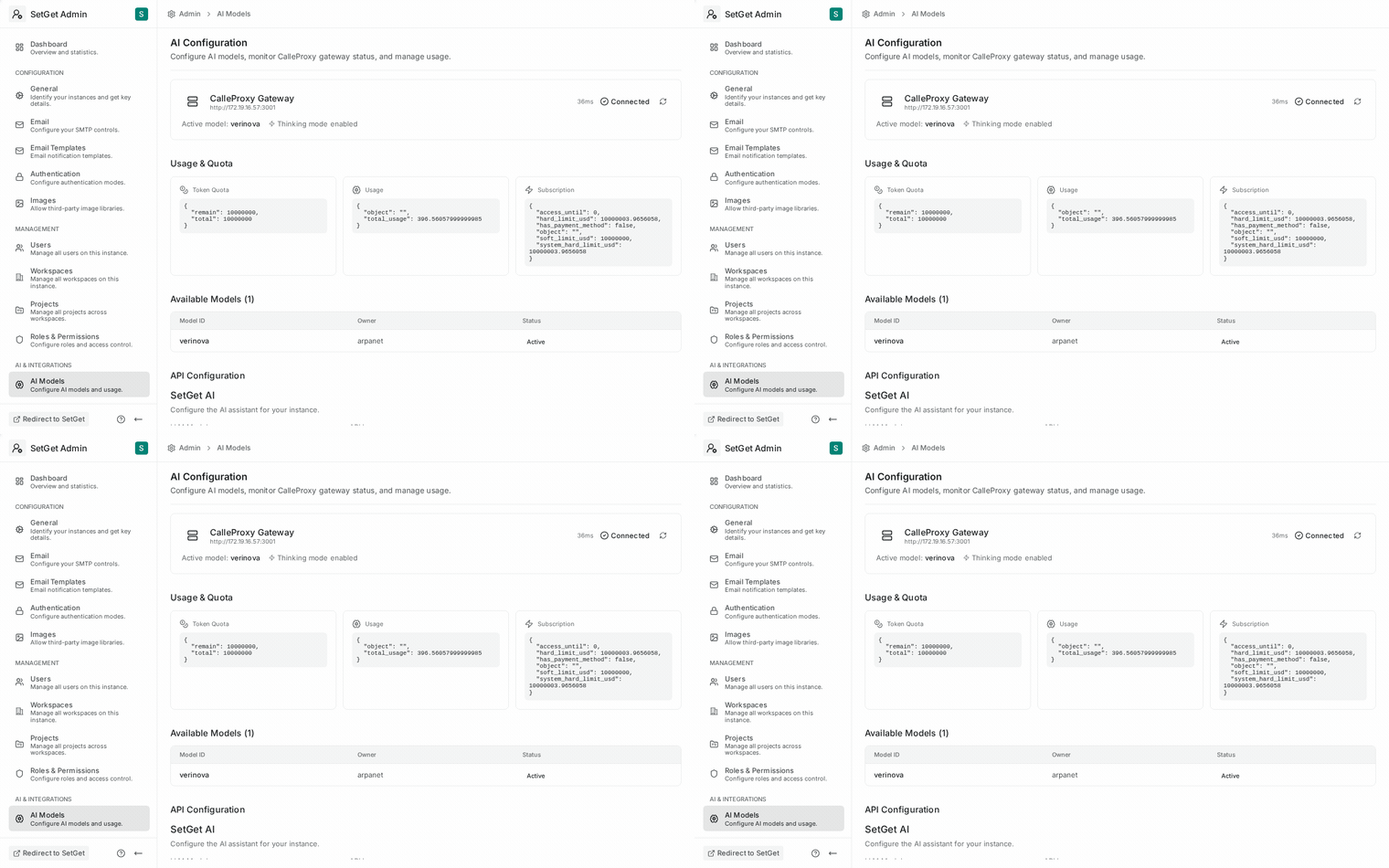
SetGet supports any LLM provider that exposes an OpenAI-compatible API. This includes OpenAI, Anthropic (via compatible proxies), local models (Ollama, vLLM), and hosted alternatives.
Configuration fields
| Field | Description | Required | Environment Variable |
|---|---|---|---|
| Provider Name | Display label for the provider (e.g., "OpenAI", "Verinova") | Yes | SETGET_AI_PROVIDER_NAME |
| API Endpoint URL | Base URL of the LLM API | Yes | SETGET_AI_API_ENDPOINT |
| API Key | Authentication key for the LLM API | Yes | SETGET_AI_API_KEY |
| Model | Model identifier to use (e.g., gpt-4o, claude-sonnet-4-20250514) | Yes | SETGET_AI_MODEL |
| Max Tokens | Maximum tokens per response | No | SETGET_AI_MAX_TOKENS |
| Temperature | Creativity parameter (0.0 = deterministic, 1.0 = creative) | No | SETGET_AI_TEMPERATURE |
Step-by-step setup
- Open Admin Panel > AI Configuration.
- Toggle Enable AI Features to on.
- Enter the API Endpoint URL (e.g.,
https://api.openai.com/v1for OpenAI). - Enter your API Key.
- Select or type the Model identifier.
- Optionally adjust Max Tokens and Temperature.
- Click Test Connection to verify the provider responds.
- Click Save to persist the configuration.
WARNING
The API key is stored encrypted on the server and is never exposed to the frontend. However, you should still rotate keys periodically and use keys with the minimum required permissions.
Provider examples
OpenAI
| Field | Value |
|---|---|
| Provider Name | OpenAI |
| API Endpoint URL | https://api.openai.com/v1 |
| API Key | Your OpenAI API key (starts with sk-) |
| Model | gpt-4o or gpt-4o-mini |
| Max Tokens | 4096 |
| Temperature | 0.3 |
Self-hosted (Ollama)
| Field | Value |
|---|---|
| Provider Name | Ollama |
| API Endpoint URL | http://localhost:11434/v1 |
| API Key | ollama (placeholder, not validated) |
| Model | llama3.1 or your preferred model |
| Max Tokens | 4096 |
| Temperature | 0.3 |
Custom / enterprise
| Field | Value |
|---|---|
| Provider Name | Your provider's name |
| API Endpoint URL | Your provider's API base URL |
| API Key | Your API key or token |
| Model | Consult your provider's documentation |
TIP
For air-gapped or high-security environments, use a self-hosted model via Ollama or vLLM. This keeps all data within your network and avoids sending workspace content to external APIs.
Workspace-level AI controls
After configuring the LLM provider at the instance level, you can control AI feature availability per workspace.
| Setting | Description | Default |
|---|---|---|
| AI enabled globally | Master switch for all AI features | Off (until configured) |
| Per-workspace override | Allow workspace admins to enable/disable AI for their workspace | Enabled |
| Workspace allowlist | Restrict AI to specific workspaces only | Empty (all workspaces) |
| Workspace blocklist | Block AI for specific workspaces | Empty |
Controlling AI by workspace
- Navigate to Admin Panel > AI Configuration > Workspace Controls.
- You will see a list of all workspaces with their current AI status.
- Toggle AI on or off for individual workspaces.
- Alternatively, use the allowlist or blocklist to manage access at scale.
WARNING
When AI is disabled for a workspace, all AI-related UI elements (assistant, suggestions, generation buttons) are hidden from users in that workspace. Existing AI threads and generated content remain accessible but new AI interactions are blocked.
AI usage monitoring
The AI Configuration page includes a usage dashboard that helps you track consumption and costs.
| Metric | Description |
|---|---|
| Total requests | Number of AI API calls in the selected period |
| Total tokens (input) | Sum of prompt tokens sent to the LLM |
| Total tokens (output) | Sum of completion tokens received from the LLM |
| Average response time | Mean latency of AI API calls |
| Error rate | Percentage of failed AI API calls |
| Top workspaces | Workspaces with the highest AI usage |
| Top users | Users with the highest AI usage |
Usage data can be filtered by date range and exported as CSV for billing or audit purposes.
Setting usage limits
To prevent unexpected costs, you can set usage limits:
| Limit | Description | Default |
|---|---|---|
| Monthly token limit | Maximum total tokens per month | Unlimited |
| Per-user daily limit | Maximum AI requests per user per day | Unlimited |
| Per-workspace monthly limit | Maximum tokens per workspace per month | Unlimited |
When a limit is reached, AI features are temporarily disabled for the affected scope until the limit resets.
Test connection
The Test Connection button sends a minimal prompt to the configured LLM API and verifies:
- The endpoint URL is reachable.
- The API key is valid.
- The specified model is available.
- A response is received within the timeout period.
If the test fails, the error message indicates the issue (network error, authentication failure, model not found, etc.).
Security and privacy
| Concern | Mitigation |
|---|---|
| Workspace data sent to external API | Use self-hosted models for sensitive data |
| API key exposure | Key is encrypted at rest and never sent to the browser |
| AI-generated content accuracy | AI responses include a disclaimer; users must review before acting |
| Cost control | Use usage limits to cap spending |
Context sent to the LLM
When a user interacts with AI features, SetGet sends contextual data to the LLM to produce relevant responses. Understanding what data leaves your instance is important for security and compliance.
| Context type | When sent | Data included |
|---|---|---|
| User query | Every AI interaction | The user's message or prompt |
| Workspace context | Workspace-scoped queries | Workspace name, description |
| Project context | Project-scoped queries | Project name, description, member list |
| Issue context | Issue-related queries | Issue title, description, status, priority, labels, assignees |
| Cycle/Module context | Planning queries | Cycle or module name, date range, progress |
| Page context | Page-related queries | Page title and content |
| Conversation history | Follow-up messages | Previous messages in the AI thread |
WARNING
If your organization handles sensitive data (healthcare, financial, classified), evaluate whether sending workspace content to an external LLM complies with your data handling policies. Self-hosted models eliminate this concern entirely.
Troubleshooting AI
| Problem | Cause | Solution |
|---|---|---|
| Test connection fails | Wrong endpoint URL | Verify the API base URL format (e.g., must include /v1) |
| "Model not found" error | Model identifier incorrect | Check the model name against the provider's documentation |
| Slow responses | Model or network latency | Try a smaller/faster model, or use a closer endpoint |
| Responses cut off | Max tokens too low | Increase the Max Tokens setting |
| Incoherent responses | Temperature too high | Lower the Temperature setting (try 0.2-0.3) |
| 429 rate limit errors | Too many concurrent requests | Set per-user daily limits or upgrade your API plan |
Related pages
- Admin Panel Overview — Navigate the Admin Panel
- Feature Flags — Global on/off for AI features
- Security Settings — Data privacy and access controls
- General Settings — Instance-wide preferences