
Admin Panel Overview
The SetGet Admin Panel is the central control surface for managing your entire SetGet instance. It allows instance administrators to configure system-wide settings, manage users and workspaces, monitor activity, and enforce security policies that apply across every workspace on the platform.
What is the Admin Panel?
The Admin Panel (also referred to as the Backoffice) is a dedicated administrative interface separated from the day-to-day project management UI. While regular users interact with workspaces, projects, and work items, the Admin Panel provides a higher-level view of the entire SetGet deployment.
From the Admin Panel, you can:
- Configure instance-wide settings such as branding, authentication, and email delivery.
- Manage every user account on the instance.
- Oversee all workspaces and their resource usage.
- Set up storage backends, AI providers, and integrations.
- Review audit logs and login activity.
- Enforce security policies and compliance requirements.
Who can access the Admin Panel?
Only instance administrators can access the Admin Panel. An instance administrator is a user whose account has been granted the instance_admin role. This is distinct from workspace-level roles like Owner, Admin, Member, or Guest.
The first user created during initial instance setup is automatically assigned the instance admin role. Additional instance admins can be appointed from the Admin Panel's user management section.
WARNING
Instance admin access grants full control over the entire SetGet deployment, including the ability to read, modify, or delete any workspace, user, or configuration. Grant this role only to trusted operations or platform team members.
Accessing the Admin Panel
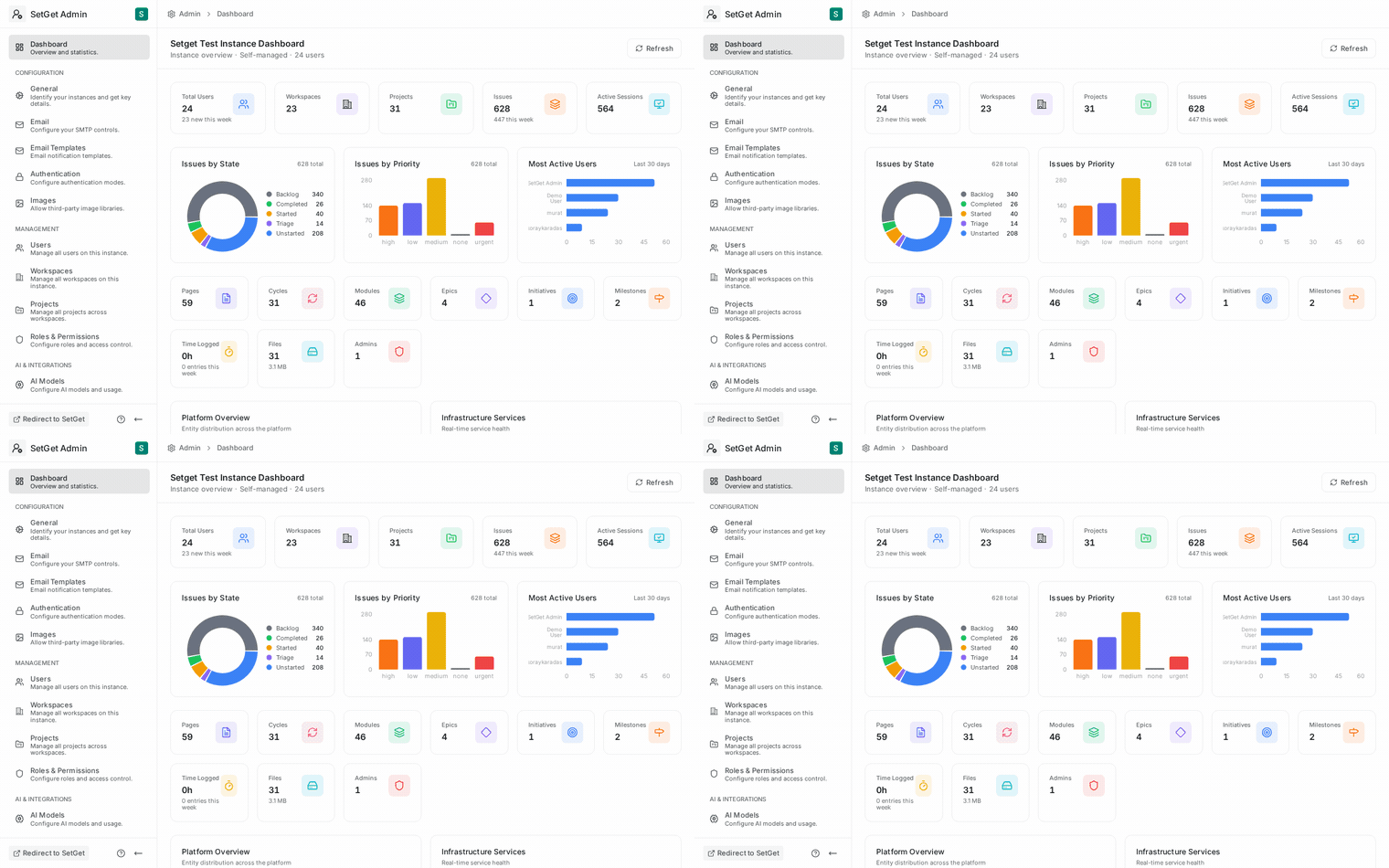
The Admin Panel is available at the /backoffice/ path of your SetGet instance URL:
https://your-setget-domain.com/backoffice/You can also access it by clicking the Admin Panel link in the user menu (top-right corner of the application) when logged in as an instance administrator. Users without the instance admin role will not see this link and will receive a 403 Forbidden response if they navigate to the URL directly.
Admin Panel sections
The Admin Panel is organized into the following sections:
| Section | Path | Description |
|---|---|---|
| General Settings | /backoffice/settings/general | Instance name, URL, branding, timezone, and description |
| Email / SMTP | /backoffice/settings/email | SMTP configuration and email delivery settings |
| Email Templates | /backoffice/settings/email-templates | Customize system-generated email content and appearance |
| Authentication | /backoffice/settings/authentication | Sign-up rules, OAuth providers, SAML, LDAP, password policies |
| AI Configuration | /backoffice/settings/ai | LLM provider, API keys, model selection, workspace-level AI controls |
| Security | /backoffice/settings/security | IP restrictions, session policies, brute-force protection |
| Storage | /backoffice/settings/storage | MinIO/S3-compatible object storage configuration |
| Feature Flags | /backoffice/settings/features | Enable or disable platform capabilities instance-wide |
| GDPR / KVKK | /backoffice/settings/gdpr | Data retention, user data requests, compliance settings |
| Users | /backoffice/users | List, create, deactivate, and delete user accounts |
| Workspaces | /backoffice/workspaces | List, inspect, suspend, transfer, and delete workspaces |
| Audit Logs | /backoffice/logs/audit | Chronological record of all admin actions and system changes |
| Login Logs | /backoffice/logs/login | Login attempts, failed authentications, suspicious activity |
Instance admin vs. workspace admin
SetGet has two distinct levels of administration. Understanding the difference is critical for proper access control.
| Aspect | Instance Admin | Workspace Admin |
|---|---|---|
| Scope | Entire SetGet deployment | Single workspace |
| Access | Admin Panel (/backoffice/) | Workspace Settings (/settings/) |
| User management | Create, deactivate, delete any user | Invite, remove, change roles within the workspace |
| Workspace management | Suspend, transfer, delete any workspace | Configure workspace settings, billing, integrations |
| Security policies | Set instance-wide password rules, IP restrictions | N/A |
| Storage / SMTP / AI | Configure backend infrastructure | N/A |
| Audit visibility | All actions across all workspaces | Workspace-level activity only |
| Feature flags | Enable/disable features for the entire instance | N/A |
| Granted by | Another instance admin or initial setup | Workspace owner |
TIP
A user can be both an instance admin and a workspace admin. The roles are independent. Being an instance admin does not automatically make you an admin of every workspace, though the Admin Panel gives you oversight capabilities over all workspaces.
Granting and revoking instance admin
To grant the instance admin role to a user:
- Navigate to Admin Panel > Users.
- Find and open the user's detail page.
- Change the Role dropdown from "User" to "Instance Admin".
- Click Save.
To revoke instance admin access, follow the same steps and change the role back to "User".
WARNING
You cannot revoke your own instance admin role. Another instance admin must do it. This prevents accidental lockout of the last administrator.
Common admin workflows
Initial deployment
When you first deploy SetGet, the Admin Panel is where you perform essential configuration:
- Create the first admin account during the setup wizard.
- Configure SMTP so the platform can send emails (invitations, password resets, notifications).
- Set up storage to enable file uploads and attachments.
- Configure authentication to allow your team to sign in via OAuth, SAML, or magic links.
- Set branding to match your organization's identity.
See Instance Setup for a detailed walkthrough.
Ongoing operations
Day-to-day administration typically involves:
- Monitoring login logs for suspicious activity or failed authentication spikes.
- Reviewing audit logs to track who changed what and when.
- Managing users as team members join or leave the organization.
- Adjusting feature flags as new capabilities become available.
- Updating SMTP or storage credentials when infrastructure changes.
Compliance and security
For organizations with regulatory requirements:
- Configure GDPR/KVKK settings to enforce data retention policies and handle user data requests.
- Set up IP allowlists to restrict Admin Panel access to trusted networks.
- Enable brute-force protection to prevent credential-stuffing attacks.
- Export audit logs for external compliance audits.
Navigation tips
- The Admin Panel uses a left sidebar for section navigation. Each section groups related settings together.
- Changes to settings are saved explicitly — you must click Save or Update to apply modifications.
- Some settings (such as SMTP and storage) include a Test Connection button to verify configuration before saving.
- Destructive actions (deleting users, suspending workspaces) require confirmation dialogs.
Permissions model
The Admin Panel enforces a strict permissions model:
| Action | Who can perform it |
|---|---|
| View Admin Panel | Instance admins only |
| Modify settings | Instance admins only |
| Create/delete users | Instance admins only |
| Suspend/delete workspaces | Instance admins only |
| View audit logs | Instance admins only |
| Grant instance admin role | Existing instance admins only |
There is no read-only admin role. All instance admins have full read-write access to the Admin Panel.
Troubleshooting access
If you cannot access the Admin Panel:
- Verify your role. Ask an existing instance admin to confirm your account has the
instance_adminrole. - Check the URL. Ensure you are navigating to
/backoffice/(with the trailing slash). - Clear browser cache. Stale session tokens can cause authentication failures after role changes.
- Check server logs. If the Admin Panel returns a 500 error, review the SetGet API logs for details.
WARNING
If all instance admin accounts are locked out, you can promote a user to instance admin directly in MongoDB by setting is_instance_admin: true on the user document in the users collection. This should be a last-resort recovery procedure.
Admin Panel keyboard shortcuts
| Shortcut | Action |
|---|---|
Ctrl + K | Open command palette / quick search |
Ctrl + S | Save current settings page |
Escape | Close modal or dialog |
Data model overview
The Admin Panel reads from and writes to several MongoDB collections that store instance-level configuration:
| Collection | Purpose |
|---|---|
instance_settings | General settings, branding, SMTP, storage, authentication, security, AI, feature flags, GDPR |
users | All user accounts, including the is_instance_admin field |
workspaces | All workspaces with their status and ownership |
audit_logs | Chronological admin action records |
login_logs | Authentication attempt records |
email_templates | Customized email templates |
data_requests | GDPR/KVKK export and deletion requests |
consent_records | User consent tracking |
processing_records | GDPR Article 30 processing activity records |
Settings are cached in Redis for performance. When you save a setting in the Admin Panel, the cache is invalidated and the new value takes effect on the next request.
Environment variable precedence
Many Admin Panel settings can also be set via environment variables. When an environment variable is set, it takes precedence over the value stored in MongoDB. The Admin Panel field shows the effective value but may be read-only.
The general precedence order is:
- Environment variable (highest priority)
- MongoDB-stored value (set via Admin Panel)
- Default value (built into the application)
This design allows operations teams to lock critical settings (like SMTP credentials or storage endpoints) at the infrastructure level while allowing less sensitive settings (like branding) to be managed through the UI.
API access
All Admin Panel operations are available through the SetGet REST API under the /api/admin/ prefix. This enables automation of administrative tasks:
GET    /api/admin/settings          — Read all settings
PATCH  /api/admin/settings/general  — Update general settings
PATCH  /api/admin/settings/smtp     — Update SMTP settings
GET    /api/admin/users             — List users
POST   /api/admin/users             — Create user
GET    /api/admin/workspaces        — List workspaces
GET    /api/admin/logs/audit        — Query audit logs
GET    /api/admin/logs/login        — Query login logs
All admin API endpoints require a valid session token for a user with the instance_admin role.
TIP
Use the admin API to automate routine tasks like user provisioning, workspace creation, or audit log export. Pair it with your organization's identity management system for seamless onboarding and offboarding.
Backup and recovery
While not directly part of the Admin Panel UI, backup procedures are critical for instance administration:
| Component | What to back up | Method |
|---|---|---|
| MongoDB | All collections | mongodump or replica set snapshots |
| Redis | Ephemeral — no backup needed | N/A |
| MinIO / S3 | All buckets | mc mirror or bucket replication |
| Environment | .env file or secrets manager | Version-controlled (secrets excluded) |
Schedule MongoDB backups at least daily and MinIO backups at least weekly. Test restoration procedures periodically to ensure backups are usable.
Related pages
- Instance Setup — First-time configuration walkthrough
- General Settings — Branding, name, and global preferences
- User Management — Managing user accounts
- Workspace Management — Overseeing workspaces
- Security Settings — IP restrictions and session policies
- Audit Logs — Tracking administrative actions