
Email and SMTP Configuration
SetGet uses SMTP to send transactional emails — workspace invitations, password resets, magic link codes, and notification digests. A working SMTP configuration is essential for most user-facing flows.
Navigate to Admin Panel > Email / SMTP or go directly to /backoffice/settings/email.
Why SMTP matters
Without a configured SMTP server, the following features will not function:
| Feature | Impact |
|---|---|
| Workspace invitations | Users cannot be invited by email |
| Password reset | Users cannot recover forgotten passwords |
| Magic link authentication | Passwordless login is unavailable |
| Notification digests | Periodic email summaries are not sent |
| Welcome emails | New users do not receive onboarding messages |
WARNING
Configure SMTP before inviting users to your instance. Without it, invitation emails will silently fail and users will have no way to join.
SMTP settings reference
| Setting | Description | Required | Environment Variable |
|---|---|---|---|
| SMTP Host | Mail server hostname or IP address | Yes | SETGET_SMTP_HOST |
| SMTP Port | Mail server port | Yes | SETGET_SMTP_PORT |
| Username | SMTP authentication username | Yes | SETGET_SMTP_USERNAME |
| Password | SMTP authentication password | Yes | SETGET_SMTP_PASSWORD |
| From Email | Sender email address | Yes | SETGET_SMTP_FROM_EMAIL |
| From Name | Sender display name | No | SETGET_SMTP_FROM_NAME |
| Use TLS | Enable TLS/SSL encryption | Yes | — |
| TLS Mode | implicit (port 465) or starttls (port 587) | Yes | — |
Configuring SMTP step by step
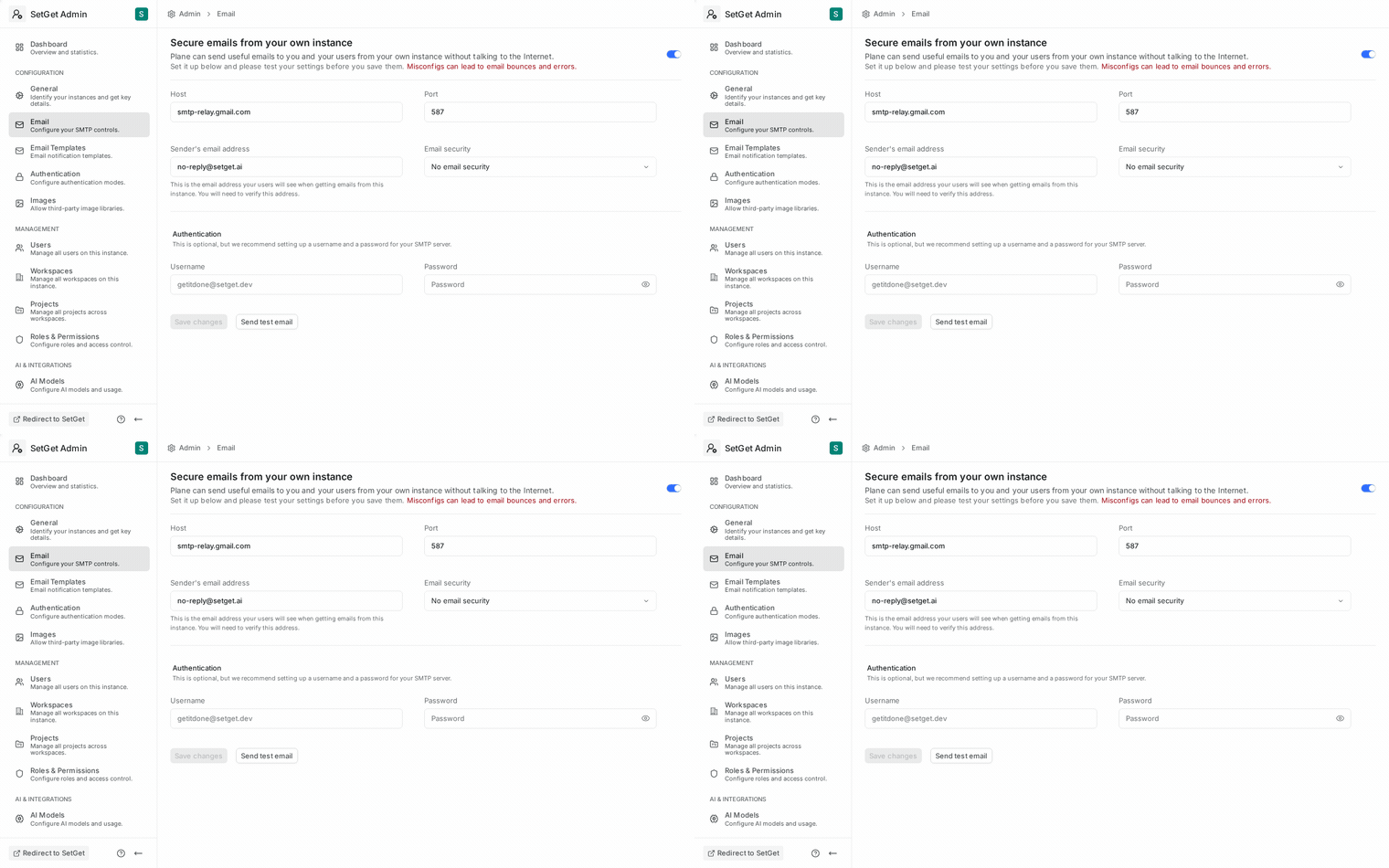
- Open Admin Panel > Email / SMTP.
- Enter your SMTP server hostname in the SMTP Host field.
- Enter the port number in the SMTP Port field.
- Select the appropriate TLS Mode:
- Implicit TLS for port 465 — connection is encrypted from the start.
- STARTTLS for port 587 — connection upgrades to TLS after initial handshake.
- Enter your Username and Password.
- Set the From Email address (e.g.,
noreply@example.com). - Optionally set the From Name (e.g.,
SetGet Notifications). - Click Send Test Email to verify the configuration.
- Check your inbox for the test email.
- Click Save to persist the settings.
TLS and port selection
Choosing the right port and TLS mode is the most common source of SMTP configuration errors.
| Port | TLS Mode | Description | Recommended |
|---|---|---|---|
| 25 | None or STARTTLS | Legacy SMTP relay, often blocked by ISPs | No |
| 465 | Implicit TLS | Direct encrypted connection | Yes |
| 587 | STARTTLS | Starts unencrypted, upgrades to TLS | Yes |
| 2525 | STARTTLS | Alternative port used by some providers | Sometimes |
TIP
When in doubt, try port 465 with implicit TLS first. It is the most reliable option and avoids STARTTLS negotiation issues.
Test email
After entering your SMTP configuration, always send a test email before saving:
- Click Send Test Email.
- The test email is sent to the currently logged-in admin's email address.
- If successful, a green confirmation appears: "Test email sent successfully."
- If it fails, an error message describes the issue (connection refused, authentication failed, TLS handshake error, etc.).
Common test email failures:
| Error | Cause | Solution |
|---|---|---|
connection refused | Wrong host or port | Verify SMTP host and port |
authentication failed | Wrong username or password | Check credentials; some providers require app-specific passwords |
TLS handshake failed | Wrong TLS mode for the port | Use implicit TLS for 465, STARTTLS for 587 |
timeout | Firewall blocking outbound SMTP | Open the SMTP port in your firewall rules |
certificate error | Self-signed or expired certificate | Update the mail server certificate or configure CA trust |
Provider-specific guides
Gmail
Google's SMTP servers work well for small deployments or testing.
| Setting | Value |
|---|---|
| SMTP Host | smtp.gmail.com |
| SMTP Port | 465 |
| TLS Mode | Implicit TLS |
| Username | Your Gmail address |
| Password | App-specific password (not your Gmail password) |
| From Email | Your Gmail address |
WARNING
Gmail requires an App Password when 2-factor authentication is enabled (which it should be). Generate one at myaccount.google.com/apppasswords. Gmail has a sending limit of approximately 500 emails per day for personal accounts.
SendGrid
SendGrid is a dedicated transactional email service suitable for production deployments.
| Setting | Value |
|---|---|
| SMTP Host | smtp.sendgrid.net |
| SMTP Port | 465 |
| TLS Mode | Implicit TLS |
| Username | apikey (literal string) |
| Password | Your SendGrid API key |
| From Email | A verified sender address in SendGrid |
TIP
Set up domain authentication (SPF, DKIM) in SendGrid to improve email deliverability and avoid spam filters.
Amazon SES
Amazon Simple Email Service is a cost-effective option for high-volume deployments.
| Setting | Value |
|---|---|
| SMTP Host | email-smtp.{region}.amazonaws.com (e.g., email-smtp.eu-west-1.amazonaws.com) |
| SMTP Port | 465 |
| TLS Mode | Implicit TLS |
| Username | SES SMTP username (not your AWS access key) |
| Password | SES SMTP password (not your AWS secret key) |
| From Email | A verified email or domain in SES |
WARNING
SES starts in sandbox mode, where you can only send to verified email addresses. Request production access from the AWS Console before deploying to users.
Custom / self-hosted SMTP
For self-hosted mail servers (Postfix, Haraka, Mail-in-a-Box, etc.):
| Setting | Value |
|---|---|
| SMTP Host | Your mail server hostname or IP |
| SMTP Port | 465 or 587 |
| TLS Mode | Match your server's configuration |
| Username | As configured on your mail server |
| Password | As configured on your mail server |
| From Email | Any address your server is authorized to send from |
Ensure your mail server has valid TLS certificates, proper SPF records, and DKIM signing configured to avoid deliverability issues.
Email deliverability tips
To maximize the chance that emails reach user inboxes:
- Set up SPF records — Add a DNS TXT record authorizing your SMTP server to send on behalf of your domain.
- Configure DKIM signing — Most email providers and mail servers support DKIM. This cryptographically signs outgoing emails.
- Set up DMARC — A DMARC policy tells receiving servers how to handle emails that fail SPF or DKIM checks.
- Use a dedicated sending domain — Avoid sending from a personal email address in production.
- Monitor bounce rates — High bounce rates can damage your sender reputation.
Environment variable override
SMTP settings can be configured via environment variables instead of (or in addition to) the Admin Panel. Environment variables take precedence over Admin Panel values.
export SETGET_SMTP_HOST="smtp.example.com"
export SETGET_SMTP_PORT="465"
export SETGET_SMTP_USERNAME="noreply@example.com"
export SETGET_SMTP_PASSWORD="your-smtp-password"
export SETGET_SMTP_FROM_EMAIL="noreply@example.com"
export SETGET_SMTP_FROM_NAME="SetGet"
WARNING
Never commit SMTP credentials to source control. Use environment variables, secrets management, or a .env file excluded from version control.
Email queue and retry behavior
SetGet queues outgoing emails in Redis and processes them asynchronously. This provides resilience against temporary SMTP outages.
| Setting | Description | Default |
|---|---|---|
| Queue size | Maximum number of emails in the queue | 10,000 |
| Retry attempts | Number of times to retry a failed send | 3 |
| Retry delay | Time between retry attempts | 30 seconds (exponential backoff) |
| Dead letter threshold | After this many failures, move to dead letter queue | 3 |
When an email fails all retry attempts, it is moved to the dead letter queue. Administrators can view and manually retry dead-letter emails from the SMTP settings page.
Monitoring email delivery
The SMTP settings page includes a delivery summary:
| Metric | Description |
|---|---|
| Sent (24h) | Emails successfully sent in the last 24 hours |
| Failed (24h) | Emails that failed to send |
| Queued | Emails currently waiting to be sent |
| Dead letter | Emails that exhausted all retries |
| Average send time | Mean time from queue to SMTP handshake completion |
Email types reference
SetGet sends the following email types through SMTP:
| Email Type | Trigger | Template Customizable |
|---|---|---|
| Welcome | User registration | Yes |
| Workspace Invitation | Member invited | Yes |
| Password Reset | Reset request | Yes |
| Magic Link | Magic link request | Yes |
| Notification Digest | Scheduled delivery | Yes |
| Account Locked | Brute-force lockout | No |
| GDPR Export Ready | Data export completed | No |
| Test Email | Admin sends test | No |
Troubleshooting SMTP
| Problem | Diagnosis | Solution |
|---|---|---|
| Emails go to spam | Missing SPF/DKIM/DMARC | Set up DNS records for your sending domain |
| Emails delayed | Queue backlog | Check Redis connectivity and queue size |
| "Relay access denied" | Mail server rejects sender | Verify the From Email is authorized on your SMTP server |
| Intermittent failures | Network instability | Check firewall rules and DNS resolution for SMTP host |
| Rate limit exceeded | Provider sending limit reached | Reduce email volume or upgrade your SMTP plan |
Related pages
- Email Templates — Customize the content of system emails
- Instance Setup — Initial SMTP configuration during setup
- Authentication Settings — Magic link login requires SMTP
- General Settings — From Name defaults to Instance Name if not set